The RØDE Central app is a helpful tool that many people use with their RØDE microphones and audio devices. It makes it easier to control your equipment, change settings, and keep everything working well. In this guide, you will learn everything you need to know about the RØDE Central app in a simple way. Whether you are new to audio recording or have some experience, this article will help you understand how to get started and solve common problems. Because good sound quality matters a lot for videos, podcasts, and live streams, learning about this app can make your work much better and more fun.
Many creators love using RØDE products because they are reliable and clear. The RØDE Central app connects everything together. It works on computers and phones, so you can adjust things at home or on the go. Next, we will talk about how to download and set it up step by step.
How to Download the RØDE Central App
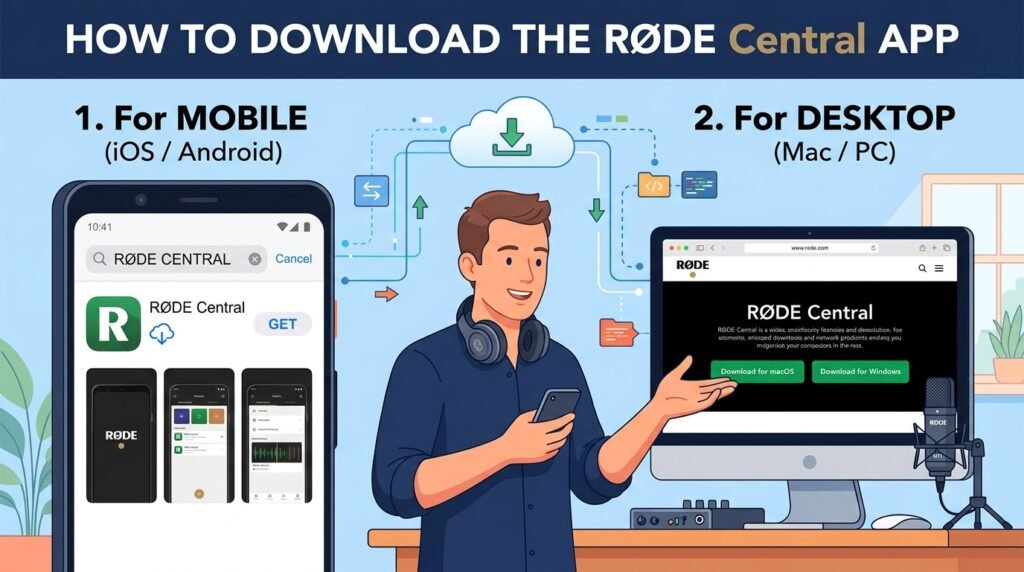
Downloading the RØDE Central app is quick and free. First, you need to decide if you want the desktop version for your computer or the mobile version for your phone. For computers, it works on Mac and Windows. For phones, it works on iOS and Android devices.
To get the desktop version, visit the official RØDE website and look for the apps section. Choose the right file for your computer type. After you click download, the file will save to your computer. Open it and follow the simple instructions on the screen to install. This process usually takes just a few minutes. Also, make sure your computer meets the basic requirements, like having a recent version of MacOS or Windows. This helps the app run smoothly without any trouble.
For the mobile app, open the App Store on your iPhone or iPad, or the Google Play Store on your Android phone. Search for “RØDE Central Mobile.” Tap the download button, and it will install automatically. Because the app is free, you do not need to pay anything. After installation, open the app to see its clean and easy design. Over time, updates come out to add new improvements, so always keep it updated for the best experience.
Another thing is that the mobile app feels very similar to the desktop one. This means you can learn it once and use it on different devices without confusion. For example, if you are recording outside, you can quickly check settings on your phone.
Step-by-Step Setup Guide for Beginners

Setting up the RØDE Central app is straightforward once you connect your device. Start by plugging your RØDE microphone or wireless system into your computer or phone using the right cable. A good USB cable makes a big difference, so use one that came with your product if possible.
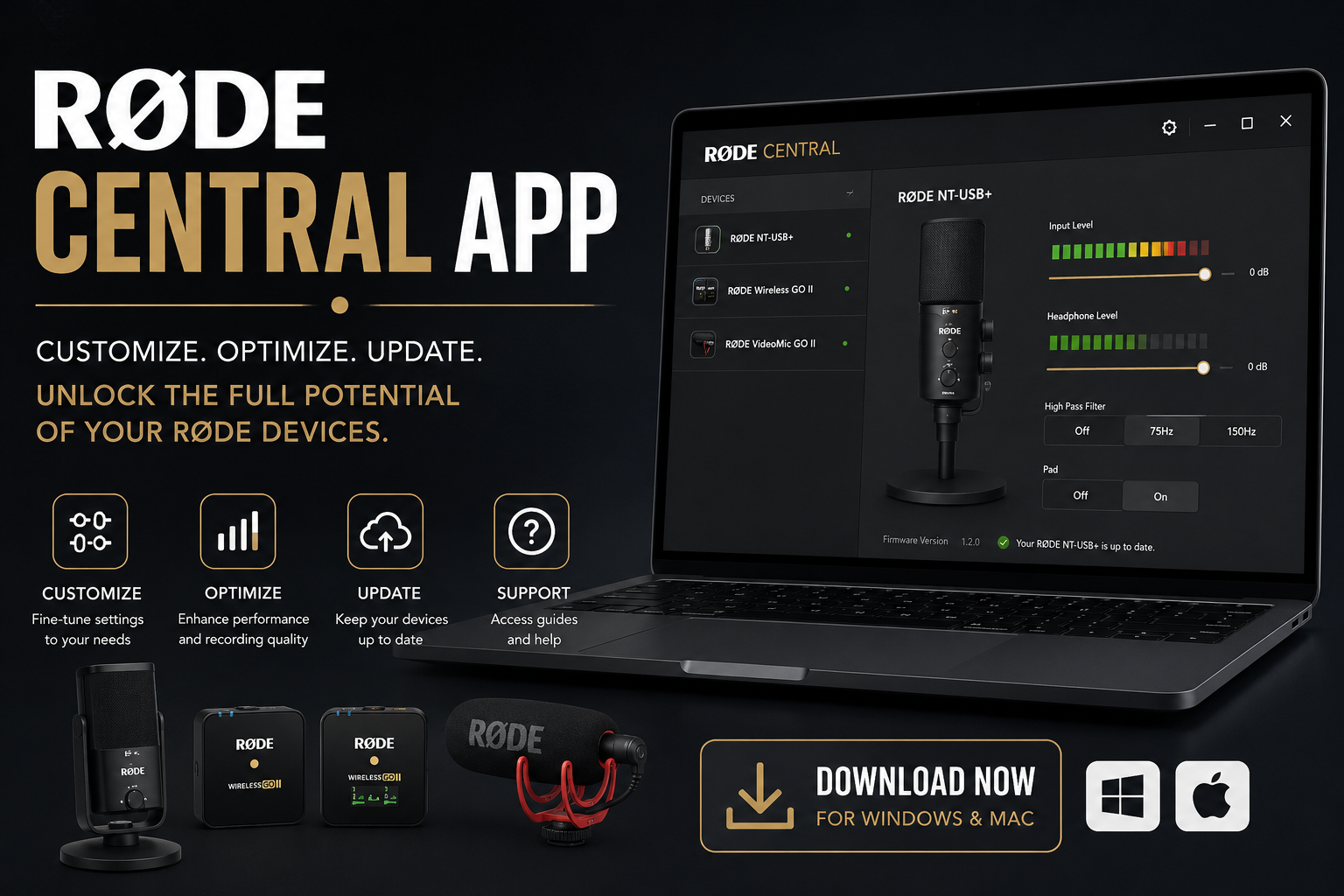
After connecting, open the RØDE Central app. It should automatically find your device. If it does not, check the connection again. The app shows a clear list of connected items, such as transmitters and receivers for wireless systems. Next, you can explore the main screen, which has sections for settings and information.
One helpful step is to update the firmware right away. Firmware is like the software inside your microphone. Updating it gives you the newest features and fixes small bugs. The app guides you through this with simple on-screen steps. Just click the update button and wait for it to finish. Do not unplug anything during this time.
After that, take some time to look at the device information. You can see battery levels, firmware version, and more. This helps you know if everything is ready. For instance, if you use a Wireless Pro or Wireless Go series, the app lets you pair transmitters easily. Pairing means making the parts talk to each other without wires. Because of this, your recordings stay clear and connected.
In addition, the setup works well for both new and older RØDE products. Take your time during the first setup. Read the built-in tips in the app, as they explain things for your specific device. This makes the whole process feel natural and less stressful.
Main Features of the RØDE Central App
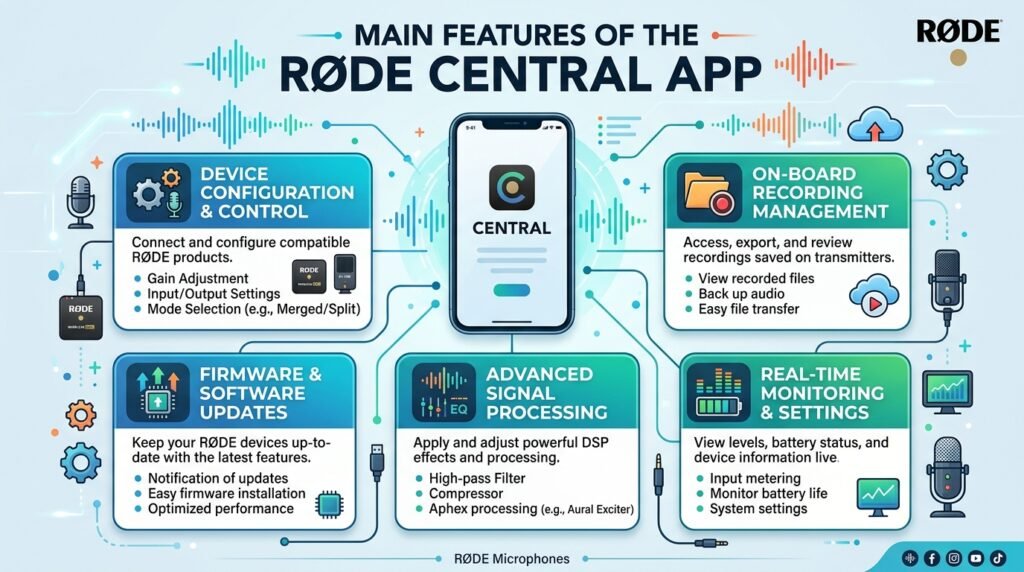
The RØDE Central app has many useful features that help you get great sound. One big feature is the ability to change device settings easily. For example, you can adjust gain levels, which control how loud the sound is. You can also turn on high-pass filters to remove unwanted low noises like wind or room rumble. These small changes make a huge difference in your final audio.
Another great thing is the on-board processing options. The app lets you use effects like compression to make voices sound even. It also includes noise gating, which cuts background noise when no one is speaking. In addition, there are special effects from Aphex, such as Aural Exciter and Big Bottom. These make the sound richer and fuller, like professional studio quality. Because these tools are built into the app, you do not need extra software.
For wireless systems, the app helps with pairing and unpairing transmitters and receivers. This is very useful when you have multiple people recording at once. You can also access on-board recordings on the desktop version. This means you can save audio directly on the device and then transfer it to your computer later. Over time, this feature saves you from losing important clips.
The app also shows helpful device details, including battery life and product ID. This information is handy during long recording sessions. For mobile users, you can control everything from your phone, which is perfect for creators who move around a lot. Another useful part is the built-in user guides. These give simple explanations right inside the app, so you learn as you go.
Furthermore, firmware updates are simple to do. They bring new features and better performance. For example, newer updates might improve connection stability or add support for fresh RØDE products. Because the app keeps everything in one place, managing your gear becomes much easier and faster.
Tips for Getting the Most Out of the App
To use the RØDE Central app well, try these practical tips. First, always connect your device directly to the computer instead of through a hub. This avoids many connection problems. Also, close other programs that use audio when you first set up. This lets the app focus better.
When you record, test different settings with short samples. Listen back to them to hear what sounds best for your voice or environment. For instance, if you are in a noisy room, increase the noise gate level. Small tests like this help you avoid mistakes later.
Keep your app and firmware up to date. New versions often fix small issues and add nice improvements. Another tip is to explore presets for popular cameras. These automatic settings save time when you connect to video gear. In addition, back up your recordings regularly, especially if you use on-board storage.
Over time, you will discover your favorite features. Many users like the clean interface because it feels simple and not crowded. Try using the mobile app during field recordings and the desktop version at home for detailed work. This combination gives you flexibility in different situations.
Common Troubleshooting Problems and Solutions
Even with a good app, sometimes issues appear. Here are some common problems and easy fixes for the RØDE Central app. One frequent issue is the device not being recognized. If this happens, try a different USB cable or port on your computer. Faulty cables often cause this. Also, restart the app and your device.
Another problem is during firmware updates, where you might see an error like “device can’t be updated.” Make sure the connection is direct and stable. Update the RØDE Central app itself first. If the problem continues, try running the desktop app as an administrator on Windows computers. This gives it more permission to work properly.
Sometimes the app crashes or freezes. In this case, close all other apps and try again. On mobile, force stop the app from your phone settings and reopen it. Updating your phone or computer operating system can also help. For wireless pairing issues, do a factory reset using the app instructions, but only as a last step because it clears some settings.
If recordings do not show up or play back, reconnect the device and relaunch the app. This simple step fixes many storage-related bugs. In addition, check your internet connection for firmware downloads, although most features work offline once set up.
For mobile connection problems, update firmware on a computer first before using the phone app. This prepares the device better. Always use official or high-quality cables to avoid hardware troubles. These troubleshooting steps solve most issues quickly, so you can get back to creating.
FAQ About the RØDE Central App
Here are answers to some common questions people ask.
Is the RØDE Central app free to use?
Yes, the app is completely free to download and use on both desktop and mobile.
Which devices work with the RØDE Central app?
It supports many RØDE wireless systems like Wireless Go and Pro series, plus some classic microphones and audio interfaces. Check the official site for your exact model.
Can I use it on my phone?
Yes, the mobile version works well on iOS and Android. It lets you change settings anywhere.
How often should I update firmware?
It is good to check for updates every few months or when you notice new features announced.
What if my device still does not connect after troubleshooting?
Try restarting your computer or phone completely. Also, make sure you have the latest app version. If needed, reach out to RØDE support for help.
Does the app work without internet?
Most settings and controls work offline. You only need internet for initial downloads or some firmware updates.
Is it safe to use?
Yes, it is official software from RØDE and safe when downloaded from trusted sources.
Conclusion
The RØDE Central app is a powerful yet simple companion for your RØDE audio gear. From easy download and setup to useful features like processing effects and firmware updates, it helps you create better sound every time. We also covered troubleshooting so you can fix problems quickly and keep working without stress. By following these steps and tips, you can make the most of your equipment in 2026 and beyond.
Remember that practice makes things easier. Start small, test often, and enjoy the clear audio you get. With the right tools and knowledge, your recordings and streams will sound more professional and enjoyable for everyone who listens. Keep exploring new ways to use the app, and happy creating!
Disclaimer: This article is for informational purposes only and is based on publicly available information as of 2026. It is not affiliated with or endorsed by RØDE Microphones. Always download the RØDE Central app from official sources to ensure safety and compatibility. Results may vary depending on your specific device, operating system, and environment. For the most accurate guidance, refer to official RØDE documentation and support. This content aims to provide neutral, factual help and does not replace professional advice.
Explore More:
FTU Apps: Complete Guide to Features, Download, Login & Benefits (2026)
IoT App Development Company: Custom Smart App Solutions for Connected Devices
About the Author