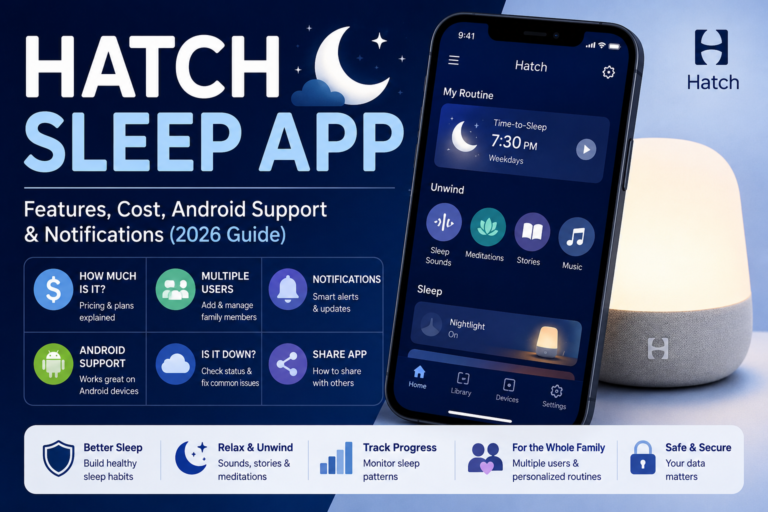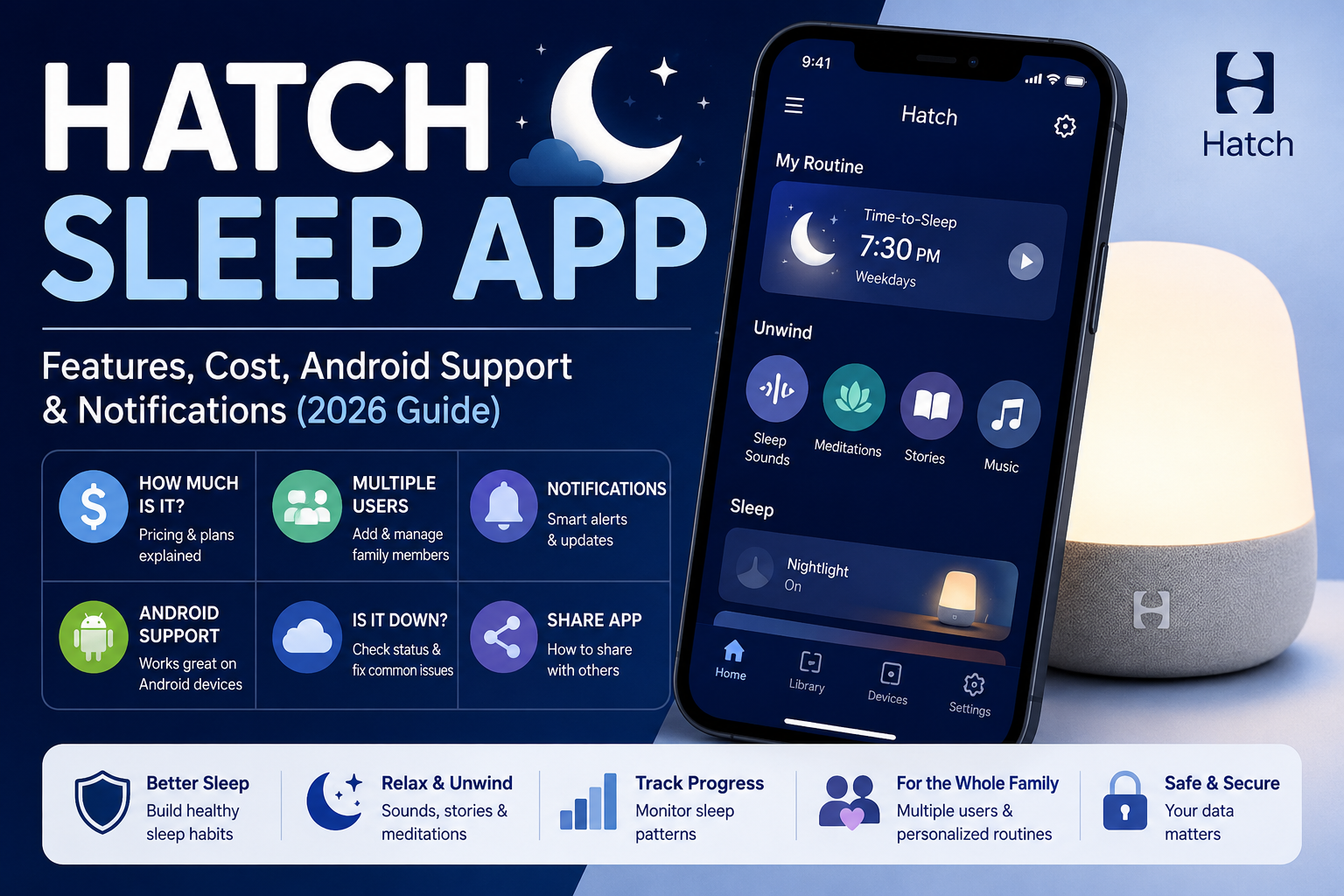
Many people want better sleep in their busy lives. The Hatch Sleep app helps control special devices that make bedtime easier and mornings gentler. This app works with machines that play soft sounds and change lights slowly. It lets you set up routines from your phone so you can relax without worry. In this article, you will learn all about the Hatch Sleep app interface in a simple way. You will see how it works, how to set it up, and tips for using it well. This information can help you decide if it fits your needs and how to get the most from it.
What Is the Hatch Sleep App?
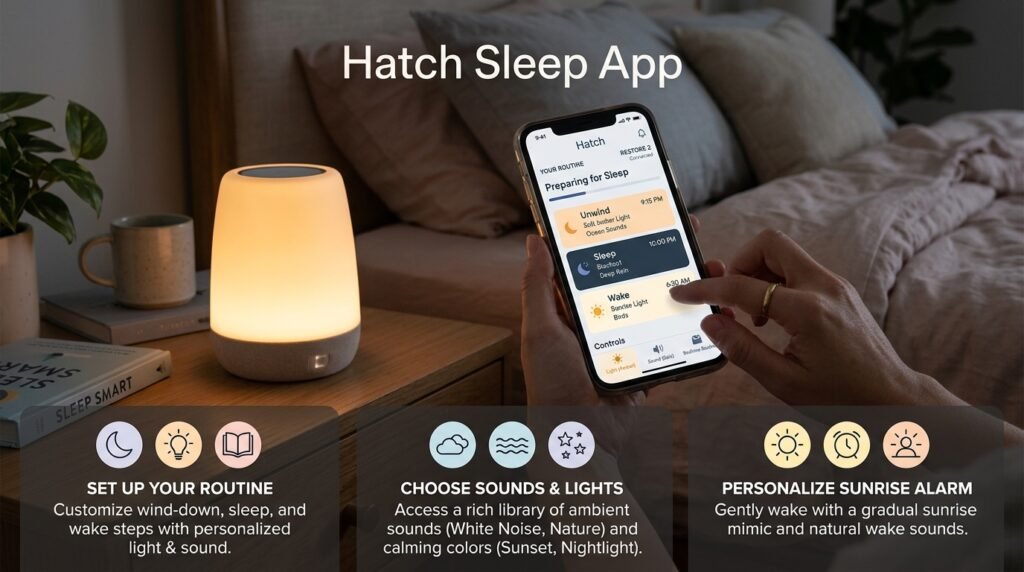
The Hatch Sleep app is a free tool you can download on your phone. It connects to Hatch devices like the Restore, Rest, or Rest+ to help with sleep and waking up. These devices sit by your bed and create a calm space with lights and sounds. The app is the main way to change settings because the devices have only a few simple buttons.
After you download the app, you make an account with your email. Then you connect your phone to the device using Bluetooth or Wi-Fi. This step is quick and the app guides you with pictures. Many families use it because it makes sleep time feel special and consistent. For example, parents set soft night lights for kids, while adults enjoy sunrise lights that wake them up slowly like the real sun. This means you start your day feeling fresh instead of with a loud alarm.
The Hatch Sleep app interface looks clean and simple. It has clear buttons and sections so even new users feel comfortable right away. You see tabs for home, explore, and settings. This layout helps you find what you need fast without confusion.
How to Set Up the Hatch Sleep App the First Time
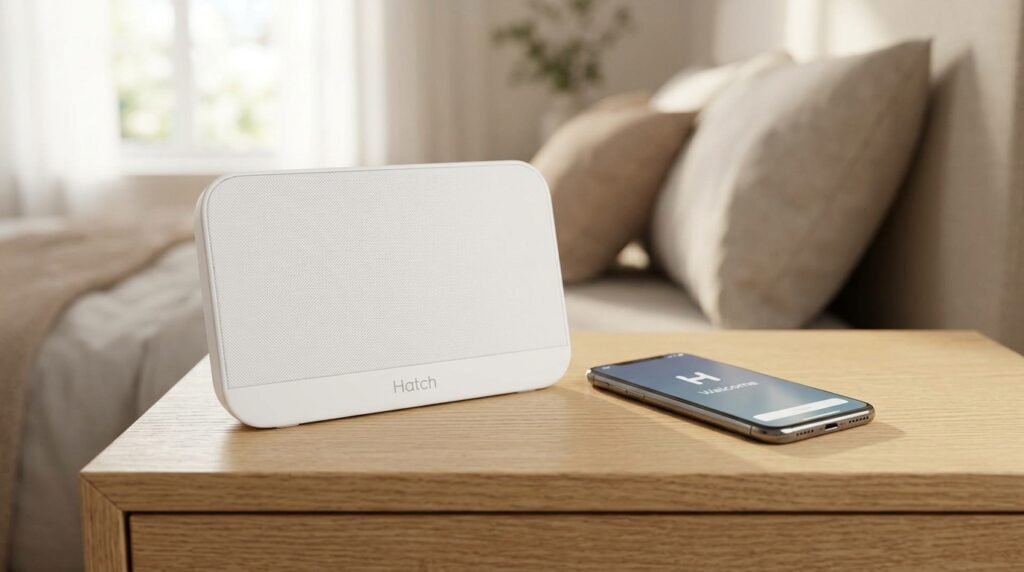
Setting up is easy and takes just a few minutes. First, plug in your Hatch device and turn it on. Next, open the app and follow the steps it shows. The app will ask you to connect to your home Wi-Fi, which is important for the device to work smoothly. Make sure you use the 2.4 GHz band if your router has two options because it connects better.
After the connection, you can set your first routine. Choose a bedtime sound like gentle rain or ocean waves. Then pick a light color that feels calming, such as soft orange or blue. The app lets you preview sounds and lights before you save them. This preview feature is very helpful because you can test everything without guessing.
Once you finish the basic setup, the app saves your choices. Over time, you can add more details like how long the sounds play or when the light should start to brighten. Many users say the guided steps make the whole process feel like following a friendly teacher. If something goes wrong during setup, the app often shows a simple message to try again or check your Wi-Fi.
Easy Controls in the Hatch Sleep App Interface

The Hatch Sleep app interface has controls that feel natural to use. On the main screen, you see big buttons to start sleep mode or wake mode right away. You can tap to change the sound volume or light brightness with a simple slider. This means no hard buttons to press in the dark.
Another nice part is the favorites section. You save the sounds and lights you like best so you can pick them quickly later. For example, if you always use white noise for sleep, it stays at the top of your list. The interface also shows your current routine clearly so you know what will happen tonight or tomorrow morning.
You can control the device from another room, which is useful for parents. If your child wakes up, you can turn on a soft light from your phone without getting out of bed right away. This feature helps keep everyone calm. The controls update fast, so changes happen almost right away. Many people like how the app feels modern but not too busy with extra things on the screen.
Hatch Sleep App Notifications and How They Help
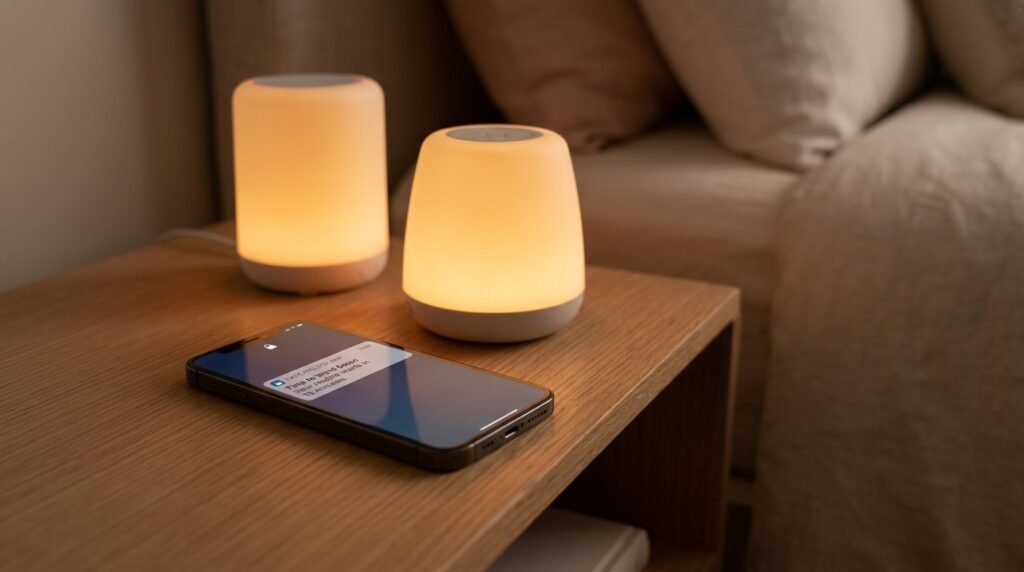
Notifications are one helpful part of the Hatch Sleep app. You can set reminders to start your bedtime routine at the same time each night. The phone sends a gentle push message that says it is time to wind down. This is great because it builds a habit without you needing to remember every detail.
You also get alerts if the device needs attention, like a low connection or a finished update. These messages are short and clear so you do not feel stressed. For families, notifications can tell different users when a routine starts. This works well when multiple people share the same device.
Another thing is rest reminders during the day. The app can nudge you to relax if you set it up. Over time, these small notifications make better sleep feel easy and automatic. You turn them on or off in the settings whenever you want.
Is the Hatch Sleep App Free and How Much Does It Cost?
The basic Hatch Sleep app is free to download and use for core features. You can control lights, basic sounds, and simple routines without paying extra. This makes it easy for anyone to try.
However, there is an optional subscription called Hatch+ that gives more sounds, meditations, and special content. It usually costs around five dollars a month or fifty dollars for a year, but prices can change, so check the app for the latest details. New devices often come with a free trial period, like thirty days, so you can test the extra features first.
Many people start with the free version and only add the subscription if they want more choices. This way, you only pay for what you really use. The app clearly shows what is free and what needs the subscription, so there are no surprises.
Using the Hatch Sleep App on Android and Other Phones
The Hatch Sleep app works well on Android phones that run version 10 or higher. It also has a version for other popular phones. The interface looks similar across devices, so controls feel the same whether you have Android or another system.
On Android, you connect using Bluetooth for quick pairing and Wi-Fi for full features. Some users mention that updates come regularly to fix small problems and add improvements. If you have an older phone, make sure it meets the requirements before you download. The app size is not too big, so it does not take much space on your device.
Hatch Sleep App Multiple Users and How to Share
Many families like to share one device with several people. The Hatch Sleep app supports multiple users in a smart way. The main person who sets up the device can invite others by email through the app settings.
After the invitation, each person downloads the app on their own phone and creates an account. Then they can connect to the same device. Favorites and routines stay on the device itself, so everyone sees the same options and can make small changes.
Only one phone connects at a time for full control, but this keeps things simple and avoids mix-ups. For example, both parents can adjust the child’s night light from their phones when needed. This sharing feature is useful in busy homes where different people help with bedtime. To share, go to device settings, find the access section, and add a person. It is straightforward and works reliably for most users.
How to Share Hatch Sleep App Access with Others
Sharing access takes just a few taps. First, the main user opens the app and goes to the device settings by tapping the gear icon. Next, they select the access or add person option and type in the email of the family member or caregiver. The invited person gets an email and follows the link to connect.
After that, both people can see the device in their apps. This is perfect for grandparents helping with naps or partners who take turns with nighttime duties. Remember that each user needs their own account for privacy and easy control. The process does not take long and makes family life smoother.
Common Questions About the Hatch Sleep App
Is Hatch Sleep app down right now?
Sometimes there are short service issues, but most days the app works fine. You can check the official status page or try basic controls on the device itself if the app is slow. Scheduled routines usually keep running even during small problems.
How much is the Hatch Sleep app overall?
The app itself costs nothing to download. Extra content through Hatch+ has a monthly or yearly fee, but basic use is free. Many people enjoy good results without paying more.
Can I use the Hatch Sleep app for multiple rooms or devices?
Yes, you can connect several Hatch devices in different rooms and switch between them in the app. This helps families with kids in separate bedrooms.
What if I have trouble with notifications?
Check your phone settings to allow notifications from the app. Also make sure the app has permission to run in the background. Small updates often fix these issues quickly.
Does the app work well for beginners?
Yes, the simple interface and step-by-step guides make it friendly for new users of any age.
How do I fix connection problems?
Restart your phone and device, check Wi-Fi, and try pairing again. The app usually gives clear tips for common fixes.
Can kids use the Hatch Sleep app too?
Older children can learn the simple controls, but parents usually manage the main settings for safety.
Final Tips for Better Use and Mistakes to Avoid
Take time to explore all sections of the app slowly at first. Try different sounds and lights during the day so you know what feels best at night. Update the app regularly because new versions often make the interface even easier.
Avoid changing too many settings at once because small steps help you learn what works for your body. Also, place the device where it has good Wi-Fi signal for smooth control. If you travel, remember some features need your home connection.
Over time, consistent routines in the app can improve your sleep habits naturally. Many users notice they fall asleep faster and wake up happier after a few weeks of regular use.
Conclusion
The Hatch Sleep app interface offers easy controls, useful notifications, and straightforward setup that can help create peaceful nights. From basic free features to shared access for families, it provides practical tools for better rest. Think about your own sleep needs and start simple to see what feels right for you. Good sleep makes every day brighter, so finding tools that fit your life is always worth the effort.
Disclaimer: This article provides general information based on publicly available details about the Hatch Sleep app and is for educational purposes only. It is not affiliated with or endorsed by the app developers. Features, costs, and availability may change over time. Always check the official app store or device instructions for the latest information. Users should make their own decisions about suitability. This content does not guarantee results and is not intended as professional sleep advice.
Explore More:
GVA App 2026: Complete Guide to San GVA App, Aules GVA App & Docent GVA App
BSS Apps Review: Features, Pricing & User Experience
About the Author