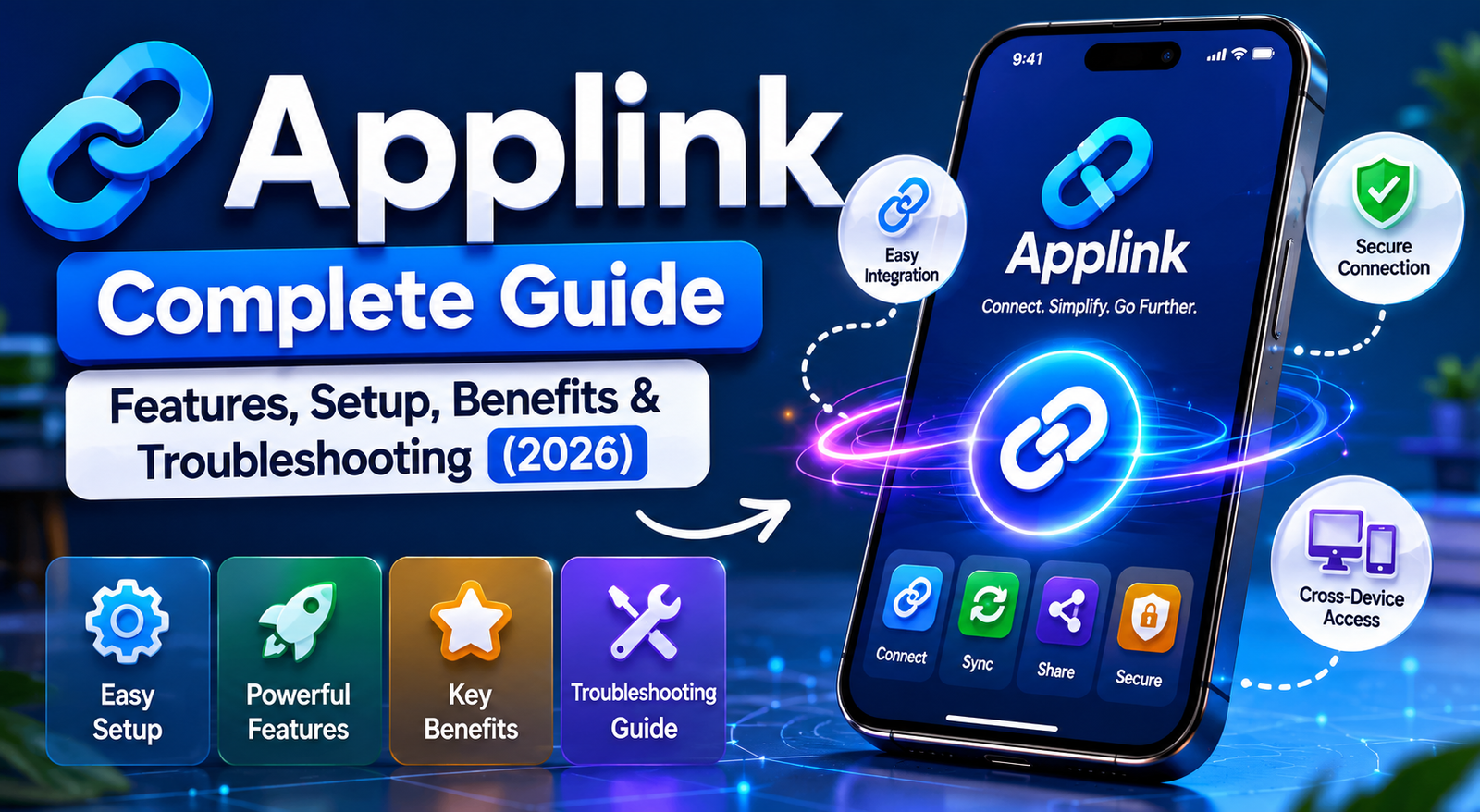
Many people want to stay connected while they drive. They like to listen to music, get directions, or talk to friends without taking their eyes off the road. This is where Applink comes in. Applink is a helpful feature in some Ford vehicles that lets you use apps from your smartphone right through your car’s screen and voice commands. In this complete guide, you will learn everything about Applink in a simple way. We will cover what it is, how to set it up, its main features, the benefits it brings, common problems, and how to fix them. By the end, you will feel confident using it or understanding why newer options exist in 2026.
Applink makes driving safer and more fun because it keeps your hands on the wheel and your eyes ahead. After that, many drivers find they enjoy their trips more. This guide uses easy steps and real-life examples so even beginners can follow along without any trouble.
What Is Applink and Why Does It Matter?
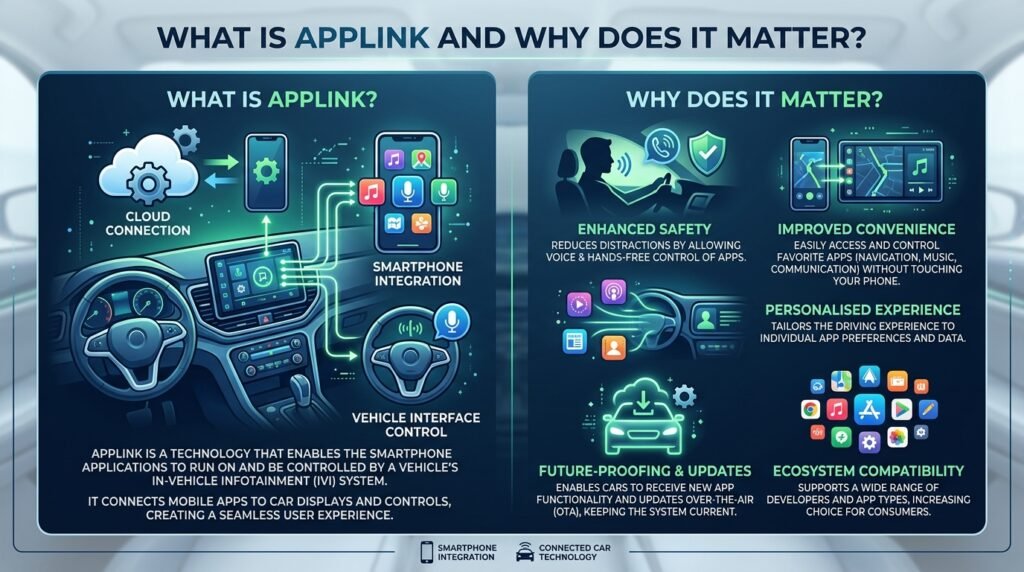
Applink is part of Ford’s SYNC system. It connects your phone to the car so you can control certain mobile apps using the car’s touchscreen, buttons on the steering wheel, or simple voice commands. For example, you can ask the car to play a song from a music app or find a nearby place without picking up your phone.
This technology started several years ago to help drivers stay safe. Because phones can distract people, Applink brings the useful parts of apps into the car in a controlled way. In 2026, many cars now use newer systems like Android Auto or Apple CarPlay, but Applink still works on older Ford models with SYNC 3. That’s why understanding it remains important for many owners.
Another thing is that Applink supports popular apps for music, news, and navigation. This means you do not need to learn a whole new system. You use the apps you already love, but in a safer manner while driving.
Main Features of Applink
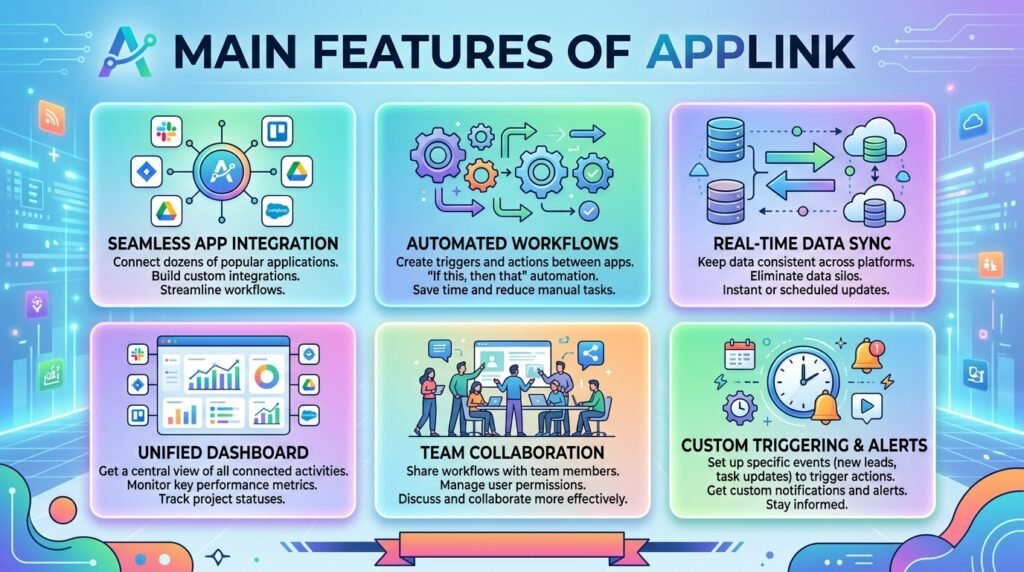
Applink has several useful features that make life on the road easier. First, it offers voice control. You can speak naturally, and the car listens. For instance, you might say, “Play my favorite playlist,” and the music starts right away. This works well because the system connects directly to your phone.
Next, steering wheel controls let you change songs, answer calls, or adjust volume without reaching for the screen. In addition, the touchscreen shows app information clearly. You see what song is playing or where you are going.
Over time, Ford added support for many different apps. Some examples include music services like Pandora or Spotify, news apps, and navigation tools. Another great feature is that Applink can run apps in the background. This means you stay connected even if you switch between tasks.
For families or long trips, Applink helps with things like finding restaurants or gas stations quickly. Because everything works through voice, parents can keep their focus on driving while kids enjoy their music or stories. These features build on each other to create a smooth experience inside the car.
How to Set Up Applink Step by Step
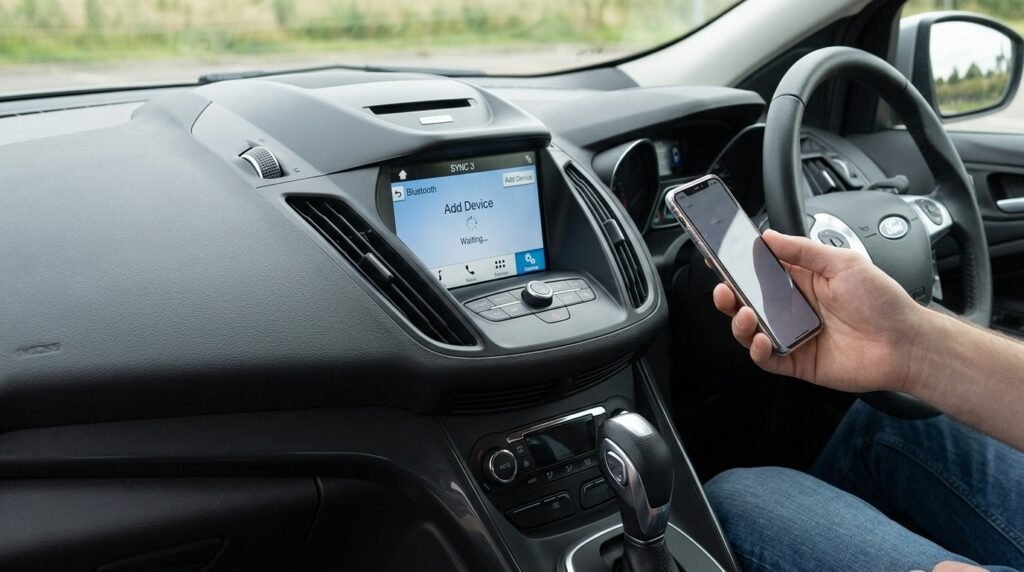
Setting up Applink is not hard if you follow simple steps. Start by making sure your Ford vehicle has SYNC 3 or a compatible system. Check your owner’s manual or the car’s screen for the SYNC version.
After that, prepare your smartphone. Download the latest versions of the apps you want to use. Turn on Bluetooth on your phone because most connections use it. For iPhone users, you may also need a USB cable for the first connection. Android users usually connect through Bluetooth alone.
Next, pair your phone with the car. Sit in the car, turn it on, and go to the phone settings on the SYNC screen. Choose to add a new device and follow the instructions that appear. Your phone will show a code or request to pair. Accept it on both sides. This step usually takes only a minute or two.
Once paired, open the Apps menu on your car’s screen. You should see available apps listed. Select one to launch it through Applink. For the first time, the system may ask for permissions, such as access to your location or contacts. Grant them so everything works smoothly.
After setup, test it with a simple command like playing music. If it works, you are ready to go. Remember to keep your phone updated and the apps current because this helps the connection stay strong. Many people find that doing this once makes every future drive easier.
Benefits of Using Applink While Driving
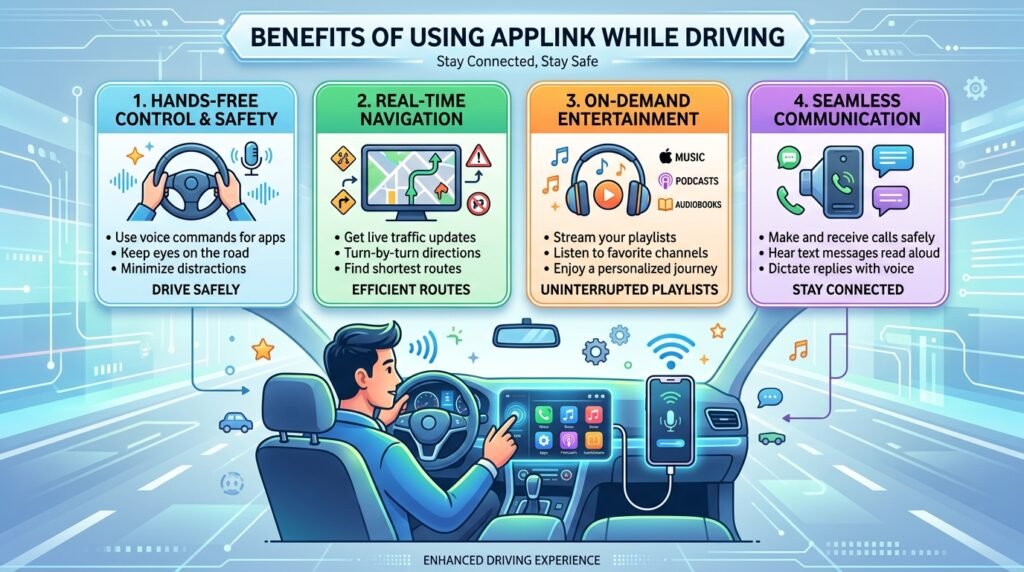
One big benefit of Applink is safety. Drivers keep their hands on the wheel and eyes on the road instead of looking at their phones. This means fewer distractions and a lower chance of accidents. Families especially like this because everyone can enjoy the trip without worry.
Another benefit is convenience. You get quick access to your favorite apps without extra effort. For example, on a long road trip, you can listen to podcasts or get live traffic updates just by speaking. This saves time and makes travel less stressful.
In addition, Applink helps save battery on your phone because the car system handles some of the work. Over time, this can make your drives more enjoyable and relaxing. People who use it regularly often say they feel more in control of their journey.
For business drivers or those who travel a lot, the voice features help with hands-free calling and navigation. That’s why many users report feeling less tired after trips. Overall, these benefits add up to a better driving experience that fits naturally into daily life.
Common Troubleshooting Tips for Applink Issues
Even good systems can have small problems sometimes. If Applink does not recognize your apps, first check that the apps are updated on your phone. Old versions often cause issues. Restart both your phone and the car system by turning the vehicle off for a few minutes and then starting it again.
Another common issue is connection problems. Make sure Bluetooth is turned on and your phone is properly paired. If the car asks for permissions again, accept them. For iPhone users, try a different USB cable if the connection drops.
Sometimes apps do not appear on the screen. In this case, go back to the main Apps menu and refresh the list. Also, check that the specific app supports Applink. Not every app works with it, so this step helps you know what to expect.
If voice commands do not work well, speak clearly and at a normal speed. Background noise can affect recognition, so try in a quieter moment first. Over time, the system learns your voice better, which improves results.
For more serious troubles, look for software updates for your SYNC system. Ford sometimes releases improvements that fix bugs. Many owners solve issues by updating both the car software and phone apps regularly. These simple fixes help most people get back on track quickly.
Advanced Tips to Get the Most from Applink
Once you know the basics, you can try some advanced tips. For example, create playlists in your music app ahead of time so you can ask for them easily while driving. This small preparation makes trips smoother.
Another useful idea is to use location-based features. Some apps can suggest places based on where you are. Because Applink connects everything, you get these suggestions right on your car’s display.
In addition, practice voice commands when the car is parked. This builds confidence for real drives. Over time, you will remember the best phrases that work well with the system.
Many drivers also combine Applink with other car features, such as the built-in navigation or climate controls. This creates a full hands-free experience that feels natural and helpful.
Applink in 2026: What Has Changed
By 2026, Ford has moved toward newer systems like Android Auto and Apple CarPlay for many vehicles. These offer even broader app support and wireless connections. However, Applink still serves many owners of older SYNC 3 equipped cars. Understanding both helps you choose what works best for your vehicle.
Newer updates focus on better security and easier connections. This means Applink remains reliable for those who continue to use it. Always check your vehicle’s compatibility for the latest options.
FAQ About Applink
How do I know if my Ford car has Applink?
Look for the SYNC system in your car settings or menu. Most SYNC 3 vehicles support it. Check your owner’s manual for clear confirmation.
Can I use Applink without Bluetooth?
Bluetooth is usually needed for Android. iPhone users may use USB. A stable connection is important for smooth performance.
Why do some apps not work with Applink?
Only compatible apps can connect. Developers decide support, so check the app store or car menu for available ones.
Is Applink safe to use?
Yes, because it keeps your focus on driving. Voice commands and steering controls reduce the need to touch your phone.
What should I do if Applink stops working suddenly?
Restart the car and phone, check updates, and re-pair the devices. This fixes most temporary issues.
Does Applink use a lot of phone data?
It depends on the apps. Music streaming or navigation uses data, so watch your plan if you travel often.
Can I still use Applink in newer Ford models?
It depends on the model year. Many newer cars prefer Android Auto or CarPlay, but check your specific vehicle.
Conclusion
Applink offers a practical way to bring smartphone apps into your Ford vehicle safely and easily. From simple setup steps to useful features like voice control and steering wheel commands, it helps drivers enjoy music, news, directions, and more without distraction. We explored the benefits for safety and convenience, plus clear troubleshooting tips that solve common problems. Even as technology moves forward in 2026 with new options, the ideas behind Applink continue to matter for better driving experiences.
Take time to try these steps in your own car. You will likely discover how much smoother your drives become. Stay curious about your vehicle’s features, keep everything updated, and always put safety first on the road. With the right knowledge, technology like Applink becomes a true helper in daily life.
Disclaimer: This article provides general information based on available details about Applink technology. It is not official Ford documentation. Features, availability, and support may vary by vehicle model, year, software version, and region. For the most accurate guidance, consult your vehicle’s owner manual, visit a Ford dealer, or check official Ford support resources. Always follow local traffic laws and prioritize safe driving. This content aims to inform and does not guarantee specific results or replace professional advice.
Explore More:
RØDE Central App: Download, Setup, Features & Troubleshooting Guide (2026)
FTU Apps: Complete Guide to Features, Download, Login & Benefits (2026)
About the Author