Many people have special photos and videos they want to keep private. These might be family memories, personal moments, or important documents. The Vaulty app helps by giving you a safe, hidden place on your phone to store them. It works like a secret folder that stays away from regular photo apps. People use it because it offers simple ways to lock things and get them back if something goes wrong. In this guide, you will learn step by step about logging in, backing up your files, and recovering them. This knowledge can save you from losing precious memories.
What Is the Vaulty App and Why Do People Use It?
The Vaulty app is a private gallery tool designed to hide your pictures and videos safely. Once you move items into it, they no longer show up in your main phone gallery. This means friends or family looking through your photos will not see what you have tucked away.
You start by choosing a strong PIN or using your fingerprint or face to unlock it. Some versions even let you disguise the app as a calculator or another common tool. This extra layer makes it harder for anyone to guess what the app really does. Over time, many users find peace of mind knowing their private collection stays protected. For example, a parent might hide special baby photos while still sharing other pictures freely. Because of this flexibility, the app has become popular for everyday privacy needs.
Another helpful part is that Vaulty gives you control over your files. You decide what goes in and what stays out. This choice feels empowering because you stay in charge instead of worrying about accidental shares or lost devices. As phones get lost or broken more often these days, having a reliable hiding spot with recovery options becomes very useful.
How to Set Up and Log In to Your Vaulty Account
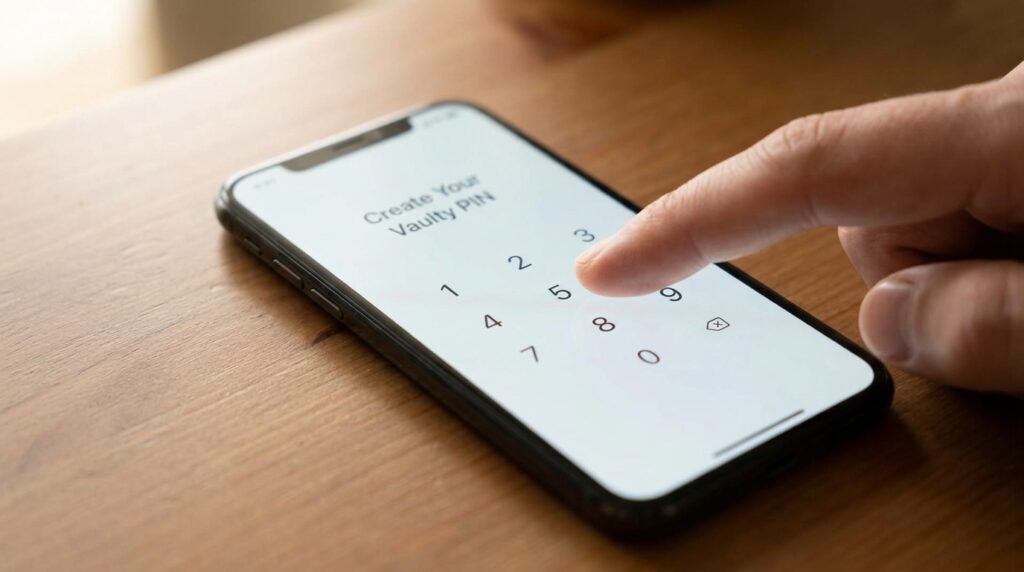
Getting started with the Vaulty app is straightforward and takes just a few minutes. First, download the app from a trusted store like Google Play or the Apple App Store. After installing it, open the app and create your main password or PIN. Choose something you can remember but that others cannot easily guess. Many people pick a mix of numbers that mean something personal to them, like a special date, but change it slightly for safety.
Next, the app may ask you to set up a security question. This step becomes important later if you forget your login details. After that, you can begin moving photos and videos into your vault. Simply select items from your gallery and tap the lock icon. The files move securely into the hidden space.
Logging in each time feels quick and natural. On supported phones, you can use biometric login with your face or fingerprint. This means you do not always need to type your PIN. If you ever switch phones, you will use the same login details to get back in. Always remember to log out properly when you finish so the vault stays closed. In real life, this simple habit protects your privacy during busy days when you hand your phone to someone else.
Setting Up Backup in the Vaulty App
Backing up your hidden files is one of the smartest things you can do with the Vaulty app. Without a backup, everything stays only on your current phone. If the device breaks or gets lost, those memories could disappear forever. That is why automatic online backup makes a big difference.
To turn on backup, go into the app settings and look for the backup option. Connect it to your preferred cloud service, such as Google Drive. Once enabled, the app quietly uploads copies of your vault files in the background. You do not have to remember to do it manually every day. This process happens over Wi-Fi to save your mobile data, which is thoughtful for people with limited plans.
For example, imagine you take a beautiful vacation video and hide it in your vault. With backup turned on, that video gets safely stored in the cloud too. Later, even if your phone falls into water, you can get a new device and bring everything back. Over time, this feature builds confidence because you know your collection is protected in more than one place. Also, the backup respects your privacy since the company does not access your actual content.
Another useful tip is to check your backup status regularly. Open the settings and see if everything has synced properly. This small check prevents surprises and ensures new files get included quickly. Many users set a reminder once a month to review their backup, which becomes a simple routine that keeps everything running smoothly.
How to Recover Your Files If Something Goes Wrong
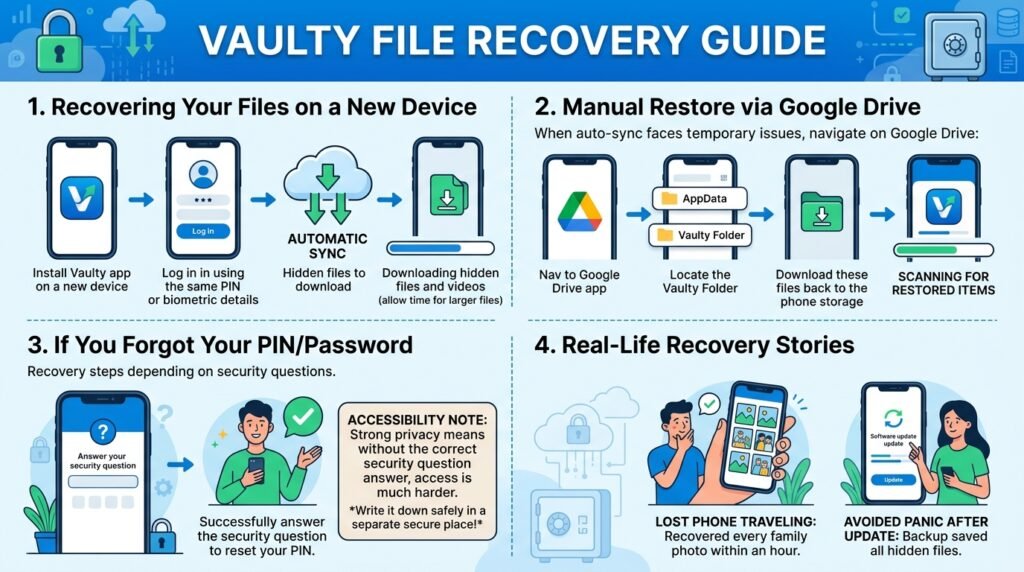
Recovery is where the Vaulty app really shines for careful users. Suppose you get a new phone or your old one stops working. With backup enabled, the process feels reassuring. Install the app on the new device and log in with the same PIN or biometric details. The app will detect your cloud backup and start downloading your hidden files. Give it some time, especially if you have many videos, because larger files take longer to transfer.
Sometimes you might need to restore manually. In those cases, you can go to your Google Drive, find the Vaulty folder inside the app data section, and download the files to your phone. After that, open the Vaulty app and let it scan for the restored items. This method works well when automatic sync faces temporary issues.
If you forget your password, the recovery steps depend on the security question you set earlier. Answer it correctly, and the app should let you reset your PIN. However, without that information, access becomes much harder because the app prioritizes strong privacy. That is why choosing a memorable security question and writing it down safely (in a separate secure place) is a good idea from the start.
Real-life stories from users show how recovery saves the day. One person lost their phone during travel but recovered every hidden family photo on their new device within an hour. Another avoided panic after a phone update by using their backup. These examples highlight why planning ahead matters so much.
Common Problems and How to Avoid Them
Even with a good app, small issues can pop up. One frequent problem happens when files do not appear after login. This can occur because of incomplete sync or phone permissions. To fix it, check that the app has all necessary storage permissions. Restarting the app or your phone often clears temporary glitches.
Another issue is running out of cloud storage space. Keep an eye on your Drive or chosen backup service so you have enough room. If you notice slow performance, try connecting to strong Wi-Fi and closing other apps while syncing.
Forgetting passwords is more serious. To avoid this, use a password manager for your main PIN if allowed, or create a pattern that is easy for you but hard for others. Also, test your backup and recovery process once every few months. This practice feels like a fire drill that prepares you without real stress. In addition, keep your app updated to the latest version because new updates often improve security and recovery tools.
Tips for Better Privacy and Safe Use
Using the Vaulty app wisely goes beyond basic login and backup. Consider creating multiple vaults if you want to separate different types of content. For instance, one vault for personal photos and another for important documents. This organization makes finding things faster later.
Take advantage of the decoy PIN feature if available. It opens an empty gallery if someone forces you to unlock the app. This clever option adds another layer of protection in difficult situations. Also, be mindful about what you hide. Only move truly private items so your main gallery stays useful for everyday sharing.
Over time, develop the habit of regularly reviewing your vault. Delete old files you no longer need to keep storage clean and backups faster. This maintenance keeps the app running smoothly for years. Another thing is to avoid public Wi-Fi for initial setup or large uploads because secure networks protect your data better during transfer.
Frequently Asked Questions About Vaulty App
How do I log in to Vaulty if I changed my phone?
Install the app on your new phone and use the same PIN or biometric login. If backup was enabled, your files should download automatically after you sign in.
What happens if I forget my Vaulty password?
You can try resetting it with your security question answer. Without that, recovery is limited because the app does not store your content on their servers for privacy reasons.
Does Vaulty backup work automatically?
Yes, once you turn it on in settings, it uploads new and changed files through your connected cloud service without extra effort from you.
Can I recover deleted files from the vault?
Check the app’s internal trash or recovery options first. If you have cloud backup, you can restore from there as well. Acting quickly improves your chances.
Is the backup safe and private?
The files stay encrypted and under your control. The service focuses on privacy, so they cannot access your personal content.
How long does recovery take?
It depends on your internet speed and the number of files. Small collections finish in minutes, while large ones with many videos may take longer.
What should I do if files do not show up after restore?
Try manual sync from settings or restart the app. Make sure you downloaded files to the correct folder and gave the app time to scan them.
Conclusion: Stay in Control of Your Private Memories
Learning about Vaulty app login, backup, and recovery helps you protect what matters most. By setting up strong login habits, enabling automatic backups, and knowing recovery steps, you build a reliable system that works when life throws surprises your way. Each feature connects to give you peace of mind without complicated steps.
Remember that good privacy comes from simple, consistent actions rather than fancy tools alone. Take time to understand the app on your own device, test the processes, and adjust as needed. In the end, staying safe with your photos and videos lets you enjoy capturing memories without constant worry. Keep exploring smart ways to manage your digital life, and your hidden treasures will stay secure for many years to come.
Disclaimer: This article provides general information based on publicly available details about the Vaulty app. It is not affiliated with or endorsed by the app developers. For the most accurate and up-to-date instructions, always refer to the official app help sections or support. Results may vary depending on your device, software version, and settings. Users are responsible for their own data security and backup practices. This content is for educational purposes only and does not guarantee specific outcomes.
Explore More:
What Is the Error 8379xnbs8e02328ws Code and How to Fix It Quickly
Reading Eggs App Explained: Interactive Reading Lessons for Children
About the Author