Have you ever opened your favorite app on your phone only to see it close right away? This problem happens to many people every day. Apps that close suddenly can feel very annoying. They stop you from finishing tasks, playing games, or talking with friends. Understanding why your app closes automatically helps you fix it quickly. In this complete guide, you will learn simple reasons and easy steps to solve the issue. By the end, you will feel more confident using your phone.
Many things can make an app close without warning. Sometimes the phone does not have enough power or space. Other times, the app itself has a small problem. Knowing these reasons is the first step to making things better. Let’s explore them together in a calm way.
Common Reasons Why Apps Close Automatically
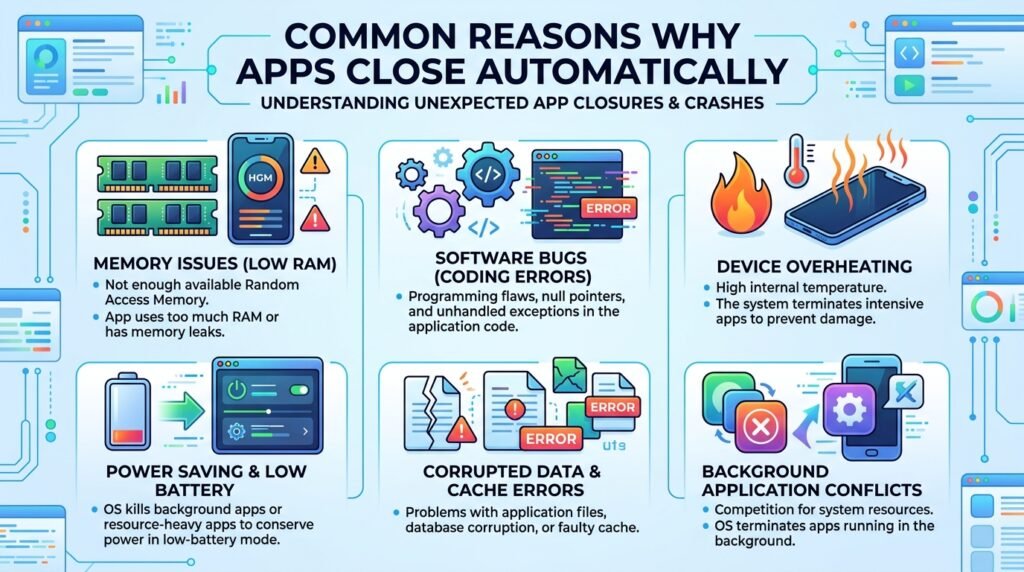
One big reason apps close suddenly is low memory on your device. Phones need space to run apps smoothly. When too many apps stay open in the background, the phone gets full. This means it cannot keep the current app running well. For example, imagine your phone as a small desk. If you put too many books on it, there is no room to work. The same thing happens with apps. Over time, this leads to crashes.
Another common cause is outdated software. Apps and your phone’s system need to work together like good friends. When one gets old and the other updates, they may not match anymore. This mismatch makes the app close automatically. Developers release updates to fix these problems and add new features. If you skip updates, small bugs can grow bigger.
Bugs inside the app are also a frequent issue. Even popular apps have mistakes sometimes. A programmer might miss something small during creation. When you use the app in a certain way, it stops working. That’s why the app closes. In addition, poor internet connection can cause trouble for apps that need online data. The app tries to load information but fails, so it shuts down to protect itself.
Battery saving modes can trigger app closures too. Many phones turn on power-saving features when the battery gets low. These features limit what apps can do. They close apps faster to save energy. This is helpful for the battery but frustrating for the user. Another thing is too much heat. If your phone feels warm after heavy use, it might close apps to cool down and avoid damage.
Over time, leftover files build up in your phone. These are called cache and data. They help apps load faster at first. But after many days, they become messy and cause problems. This leads to apps closing unexpectedly. Storage space that is almost full creates similar issues. Your phone needs some free room to breathe.
How to Check What Is Causing the Problem

Checking the cause does not need to be hard. Start by noticing when the app closes. Does it happen every time you open it? Or only after using it for a while? These patterns give good clues. Next, check your phone’s storage. Go to settings and look for storage information. If it shows very little free space, that could be the main reason.
Also, watch your battery level. Try the app when the battery is full. If it works better then, power-saving might be the issue. Restart your phone after closing all other apps. This simple action clears temporary problems. Many people find their apps work fine after a quick restart.
Another helpful check is to see if other apps close too. If only one app has trouble, the problem is likely inside that app. But if many apps close, your phone might need more care. For example, think about a car. If only one door sticks, you fix that door. If the whole engine shakes, you check the whole car.
Easy Steps to Fix Apps That Close Automatically
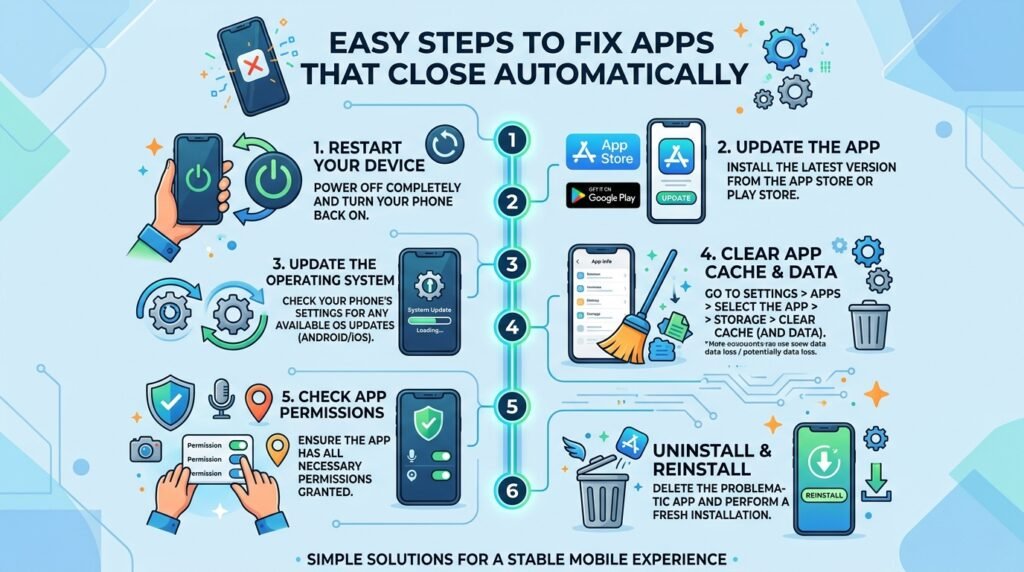
Fixing the issue starts with simple actions. First, restart your device. Turn it off completely and wait for thirty seconds. Then turn it back on. This clears many small glitches. After that, update your apps. Go to the app store and check for updates. Install any that are available. Updates often fix bugs that make apps close.
Next, clear the cache for the troubled app. This removes old, messy files without deleting your important information. Find the app in settings, tap on storage, and choose clear cache. This step helps a lot for apps you use every day. In addition, try clearing data if cache alone does not work. Just remember this might reset some settings inside the app.
Free up space on your phone. Delete old photos, videos, or apps you no longer need. This gives your device room to work properly. Another useful step is to turn off battery saver mode temporarily. Test the app with full power. You can turn the mode back on later if needed.
For apps that need internet, check your connection. Switch between Wi-Fi and mobile data to see which works better. Also, keep your phone’s operating system up to date. Go to settings and look for system updates. Installing these keeps everything running smoothly together.
If the app still closes, try reinstalling it. Delete the app first and then download it again from the store. This gives you a fresh, clean version. Most of the time, this solves deep bugs. Another thing is to check for phone overheating. Give your device a break in a cool place before using heavy apps.
Over time, these small habits prevent many problems. For instance, one person used to close extra apps every evening. After starting this routine, their favorite game stopped crashing completely.
Tips to Prevent Apps From Closing in the Future
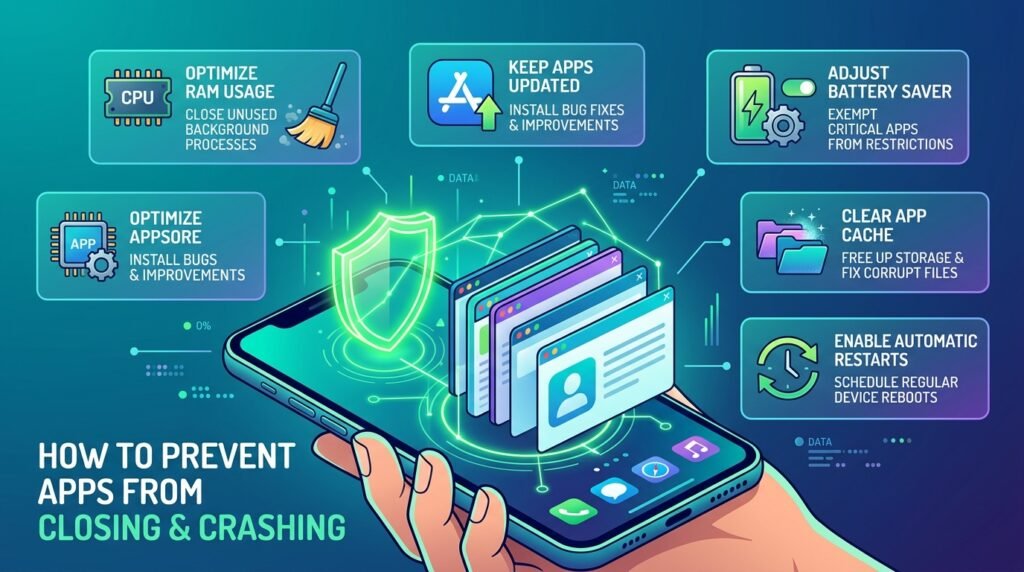
Prevention is easier than fixing problems again and again. Keep your phone clean by closing unused apps regularly. This saves memory for the apps you love. Also, install apps only from trusted places to avoid hidden issues.
Manage your storage wisely. Delete things you do not need every week. This simple habit keeps space free. Update your apps and system as soon as possible when new versions appear. These updates bring improvements that stop crashes.
Use apps gently. Avoid switching between too many apps quickly. Give your phone time to handle one task well. In addition, keep your phone at a comfortable temperature. Do not use it under direct sunlight or while it is charging in a hot spot for too long.
Pay attention to new features in updates. Sometimes apps change how they work. Learning these changes helps you use them without trouble. Another helpful idea is to restart your phone once a week. This keeps everything fresh and running nicely.
When Should You Get Extra Help
Most app closing problems have simple fixes at home. But sometimes the issue stays even after trying everything. In that case, it might be a deeper phone problem. Consider resetting your device to factory settings as a last step. Make sure to back up your important files first.
If nothing works, talk to your phone maker’s support or visit a service center. They can check hardware issues that you cannot see. For example, a weak battery or old parts might cause constant crashes.
Frequently Asked Questions
Why does my app close automatically on Android phones?
Android phones often close apps when memory is low or when too many background processes run. Clearing cache and updating apps usually solves this quickly.
Can low battery make apps close suddenly?
Yes, it can. Battery saver modes limit app power to save energy. Charging your phone or turning off saver mode often fixes it.
Will clearing cache delete my photos or messages?
No. Clearing cache only removes temporary files. Your personal photos, messages, and saved data stay safe.
How do I stop games from closing automatically?
Games need more memory and power. Close other apps, update the game, and make sure your phone has enough free space. Playing in cooler conditions also helps.
Is it normal for apps to close after a phone update?
Sometimes yes, because new updates can create small mismatches. Updating the app itself usually brings everything back to normal.
What if only one specific app keeps closing?
Focus on that app. Reinstall it or clear its data. If the problem started after a recent change, that gives a good clue.
Can too many apps cause all of them to close?
Yes. Too many apps fight for limited memory. Keep only the ones you use and close the rest when not needed.
Wrapping Up the Guide
Apps that close automatically can disrupt your day, but they do not have to stay a problem. By understanding common causes like low memory, outdated software, and cache buildup, you can take control. Simple steps such as restarting your phone, updating apps, and clearing space bring fast relief. Prevention habits like regular cleanups and timely updates keep issues away for longer.
Remember, every phone is a little different, so try steps patiently. Small changes add up to big improvements over time. With these ideas, you can enjoy your apps without sudden interruptions. Stay curious about your device, and it will serve you better every day.
This article is for informational purposes only and provides general troubleshooting advice. Results may vary depending on your device and situation. The guide does not replace professional technical support. Always back up your data before making major changes. This content aims to help users understand common issues without guaranteeing specific outcomes.
Explore More:
ISOS App Explained: Features, Benefits, and How It Works in 2026
Whappz App: Complete Guide, Features, Download & Review (2026)
About the Author