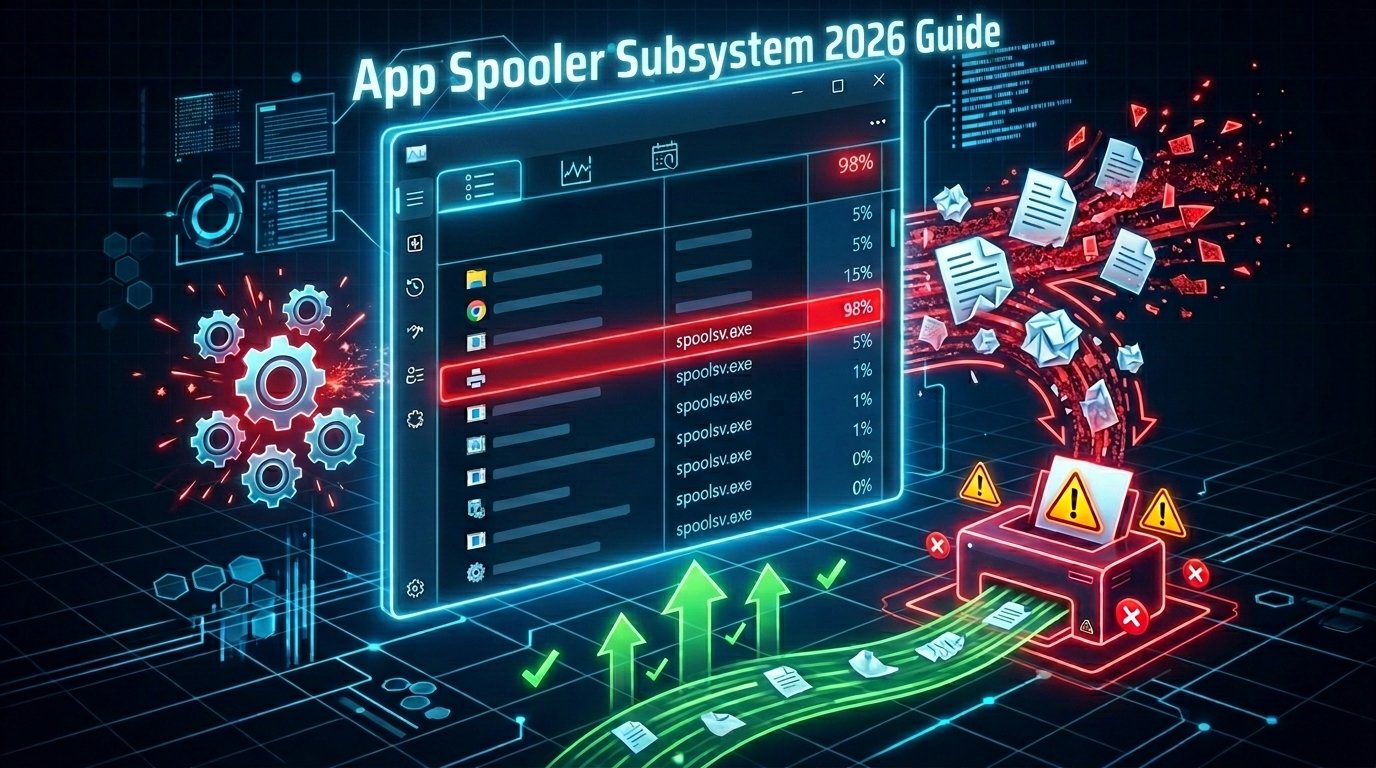
Printing is still important in 2026. You may need to print school papers, office reports, labels, or save files as PDFs. When you print, your Windows computer uses a background helper called the App Spooler Subsystem.
This easy guide explains everything in very simple words. You will learn what this helper does, why it sometimes slows your computer, and how to fix common problems like high CPU use, crashes, and printing errors. All steps are safe and work on the latest Windows versions.
What Is the App Spooler Subsystem?
The App Spooler Subsystem is a built-in Windows service. Its technical name is spoolsv.exe. Microsoft made it to handle all printing and fax tasks.
Here is a simple way to understand it: When you click the Print button, the document does not go straight to the printer. It first goes to the spooler. The spooler holds the job in a waiting area called a “queue.” Then it sends the information to the printer at the right speed. This lets you keep working on your computer while the printer runs in the background.
It also works for virtual printing, like Microsoft Print to PDF or saving web pages as PDFs. Even if you have no physical printer, Windows keeps this service ready.
The real file is always in this folder: C:\Windows\System32\spoolsv.exe. It is a normal and important part of Windows.
Is the Spooler Subsystem App a Virus?
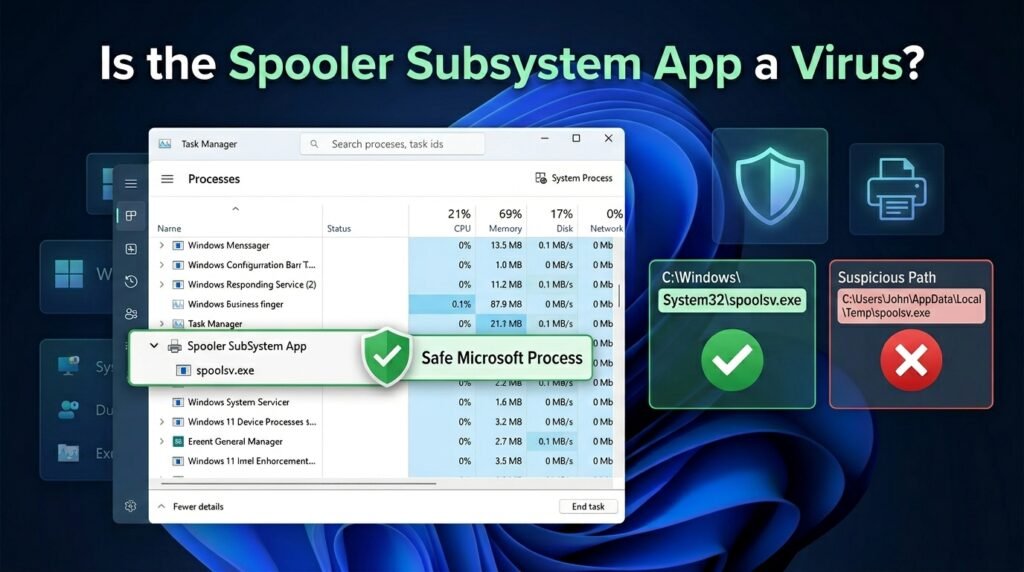
Almost always, no. It is a real Microsoft program.
Sometimes bad software tries to use a similar name to hide. But this is not common.
Easy way to check if it is safe:
- Press Ctrl + Shift + Esc to open Task Manager.
- Find “Spooler SubSystem App” or spoolsv.exe.
- Right-click it and choose “Open file location.”
- If it opens the folder
C:\Windows\System32, it is real. - If it opens any other folder, run a full virus scan with Windows Security right away.
This quick check takes only a few seconds.
Why Does the Spooler Subsystem Keep Running?
Windows starts this service every time your computer turns on. It stays ready so you can print quickly whenever you need to. There is no waiting time when you suddenly click Print.
It runs even without a printer because many apps use “Print to PDF” or other virtual options. Most people should leave it on. Only turn it off if you never print anything at all. Turning it off can cause problems in some programs.
Common Problems People Face
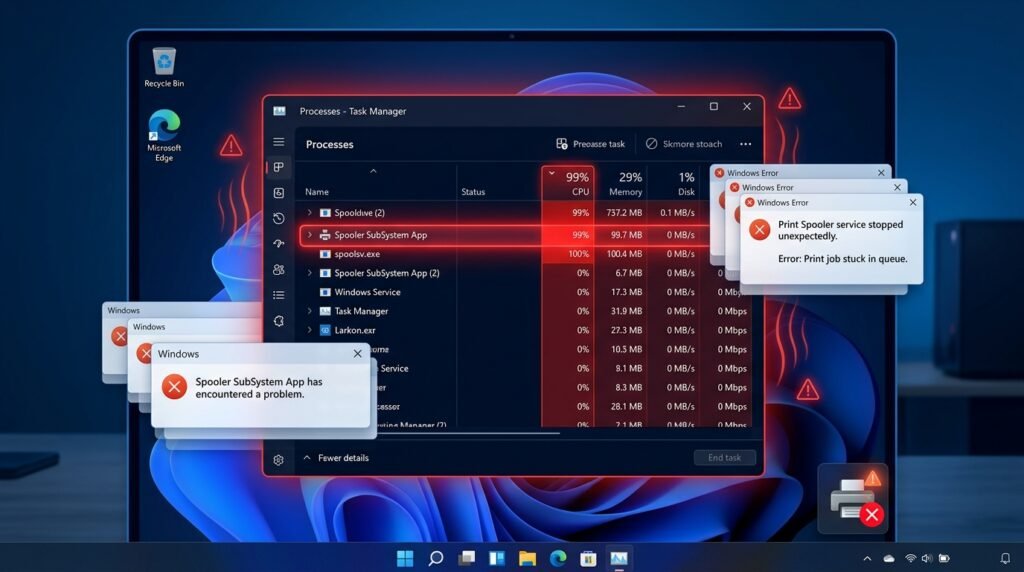
The Spooler Subsystem usually works quietly. But when something goes wrong, you may notice:
- High CPU or memory use that makes your computer slow and hot.
- The service stops or crashes suddenly.
- Print jobs get stuck.
- Error messages like “Spooler SubSystem App has encountered a problem.”
- Printer does not work even when it is turned on.
These issues often come from stuck print jobs, old drivers, or small problems in system files. The good news is most fixes are simple.
How to Fix High CPU Usage
High CPU is a very common complaint. Your computer slows down, fans get loud, and everything feels slow. A stuck or damaged print job is usually the reason. The spooler keeps trying to process it again and again.
The best and fastest fix: Clear the print queue
- Press Windows key + R, type
services.msc, and press Enter. - Find Print Spooler in the list. Right-click it and choose Stop.
- Open File Explorer and go to this folder:
C:\Windows\System32\spool\PRINTERS - Delete all files inside this folder. Do not delete the folder itself.
- Go back to the Services window, right-click Print Spooler, and choose Start.
Restart your computer after this. Open Task Manager and check if CPU use is back to normal. This fix helps most people right away.
Keep Your Printer Drivers Updated
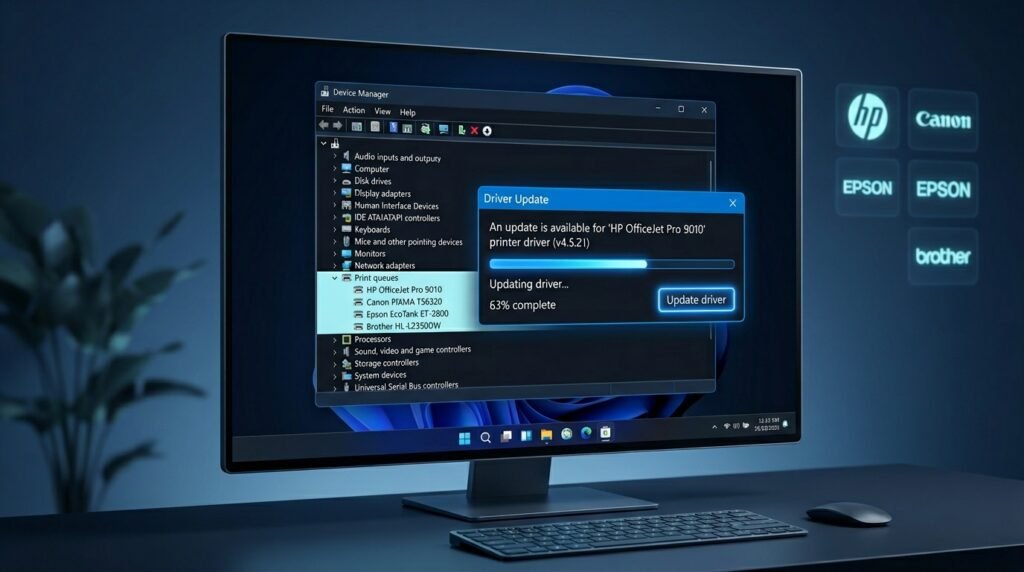
Old or broken printer drivers often cause high CPU and crashes. Companies like HP, Canon, Epson, and Brother make new drivers to work better with new Windows updates.
How to update drivers easily:
- Right-click the Start button and open Device Manager.
- Click the arrow next to Print queues.
- Right-click your printer and choose Update driver.
- Let Windows search automatically first.
- If it finds nothing, go to the printer maker’s website, download the newest driver for your exact model and Windows version, and install it.
Using official drivers from the maker usually gives the best results.
Fix Crashes and Error Messages
If you see errors saying the app needs to close or has a problem, it is often because of a bad driver or damaged file.
Run the Printer Troubleshooter – the easiest automatic fix:
- Click Start and type Troubleshoot settings.
- Open it and go to Other troubleshooters.
- Find Printer and click Run.
- Follow the simple instructions on screen. Windows will check everything and try to fix it.
This tool is much better in recent Windows versions and fixes many issues without extra work.
Use SFC to Repair Windows Files
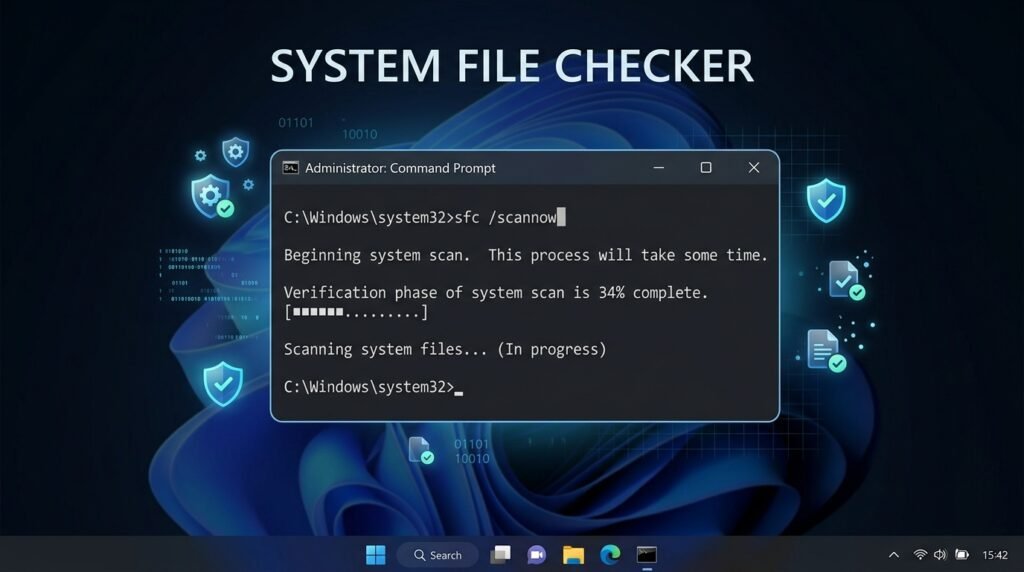
If problems continue, some Windows files may be damaged.
Run System File Checker:
- Type cmd in the search bar.
- Right-click Command Prompt and choose Run as administrator.
- Type this command and press Enter:
sfc /scannow - Wait for it to finish (it can take 10 to 20 minutes).
- Restart your computer.
This command finds and repairs damaged files that the spooler needs.
More Helpful Troubleshooting Steps
Try these one by one if the basic fixes are not enough.
Check recent Windows updates:
Go to Settings > Windows Update > Update history. Note any recent updates. Search online for the update number plus “print spooler” to see if it caused known issues. Microsoft often releases quick fixes.
Remove extra printer software:
Some PDF programs or old printer apps can fight with the Windows spooler. Uninstall any printer software you do not use often. Use simple Windows drivers instead.
Make the service restart automatically:
- Open
services.msc. - Double-click Print Spooler.
- Set Startup type to Automatic.
- Go to the Recovery tab and set all failures to Restart the Service.
- Click Apply and OK.
This helps the service recover fast if it has a small problem.
Turn off extra printer options:
Some printers have settings like SNMP or bidirectional support that cause high CPU. Right-click your printer in Settings > Bluetooth & devices > Printers & scanners, go to Properties, and turn off these options if you do not need them.
When Is It Okay to Turn Off the Print Spooler?
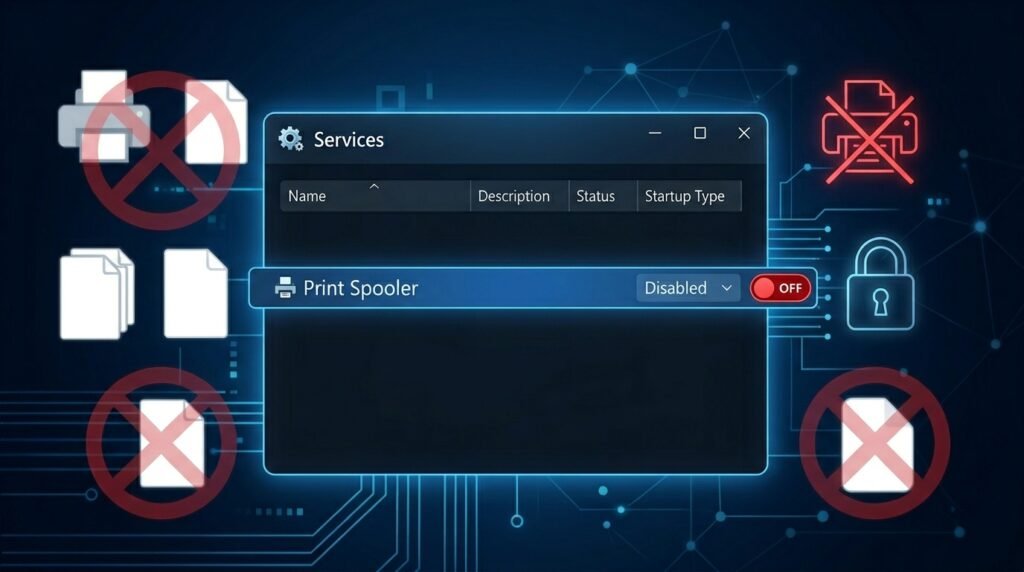
Only turn it off if you never print – not even to PDF.
How to disable it:
- Open
services.msc - Right-click Print Spooler → Properties
- Set Startup type to Disabled
- Click Stop if it is running
You can turn it back to Automatic anytime. But remember, some apps may stop working properly without it.
Extra Tips for Better Printing in 2026
- Keep Windows updated. New updates often make printing smoother.
- Use the Get Help app in Windows for printer questions. It gives simple, step-by-step help.
- Save important files in the cloud so you always have backups.
- Print only when you really need paper copies. This reduces problems.
- If you share a printer at home, make sure all computers have the same driver version.
For people who print a lot, clear the queue folder every few months even if there is no problem. This prevents future issues.
Quick Summary of Main Fixes
- High CPU → Stop the service, clear the PRINTERS folder, start the service again.
- Crashes → Update drivers and run the Printer troubleshooter.
- Printer not working → Make sure the service is running and set to Automatic.
- Slow printing → Clear old jobs and update drivers.
- Still not fixed → Run SFC and think about resetting Windows as a last step.
Final Thoughts
The App Spooler Subsystem is a quiet helper that makes printing easy and smooth. Most problems come from simple things like stuck jobs or old drivers. You can usually fix them in just a few minutes with the steps in this guide.
Clear the print queue regularly, keep drivers fresh, and use the built-in troubleshooter when something feels wrong. These small habits will keep your computer fast and your printing reliable for a long time. If nothing works after trying all steps, the problem might be with the printer hardware or a bigger Windows issue. In that case, the “Reset this PC” option (keep your files) often solves everything.
Printing may feel old-fashioned in a digital world, but when you need it, the Spooler Subsystem is there to help. With a little care, it will work quietly in the background whenever you need it.
Disclaimer: This article is for information and educational purposes only. All steps and advice are based on standard Windows troubleshooting methods. Images used in this article are for reference only and may look slightly different on your computer. We are not responsible for any issues, data loss, errors, or damage that may occur while following this guide. This is not a promotional or affiliate article — it contains no sponsored content, affiliate links, or brand promotions. Always double-check the steps and consult a professional if you are not comfortable. Results may vary depending on your Windows version and printer.
Explore More:
Woodforest Bank App 2026: The Ultimate Login, Mobile Banking, Features & Troubleshooting Guide
Instagram Picture Editing Apps: Best 2026 Guide for Perfect and Stunning Posts
About the Author