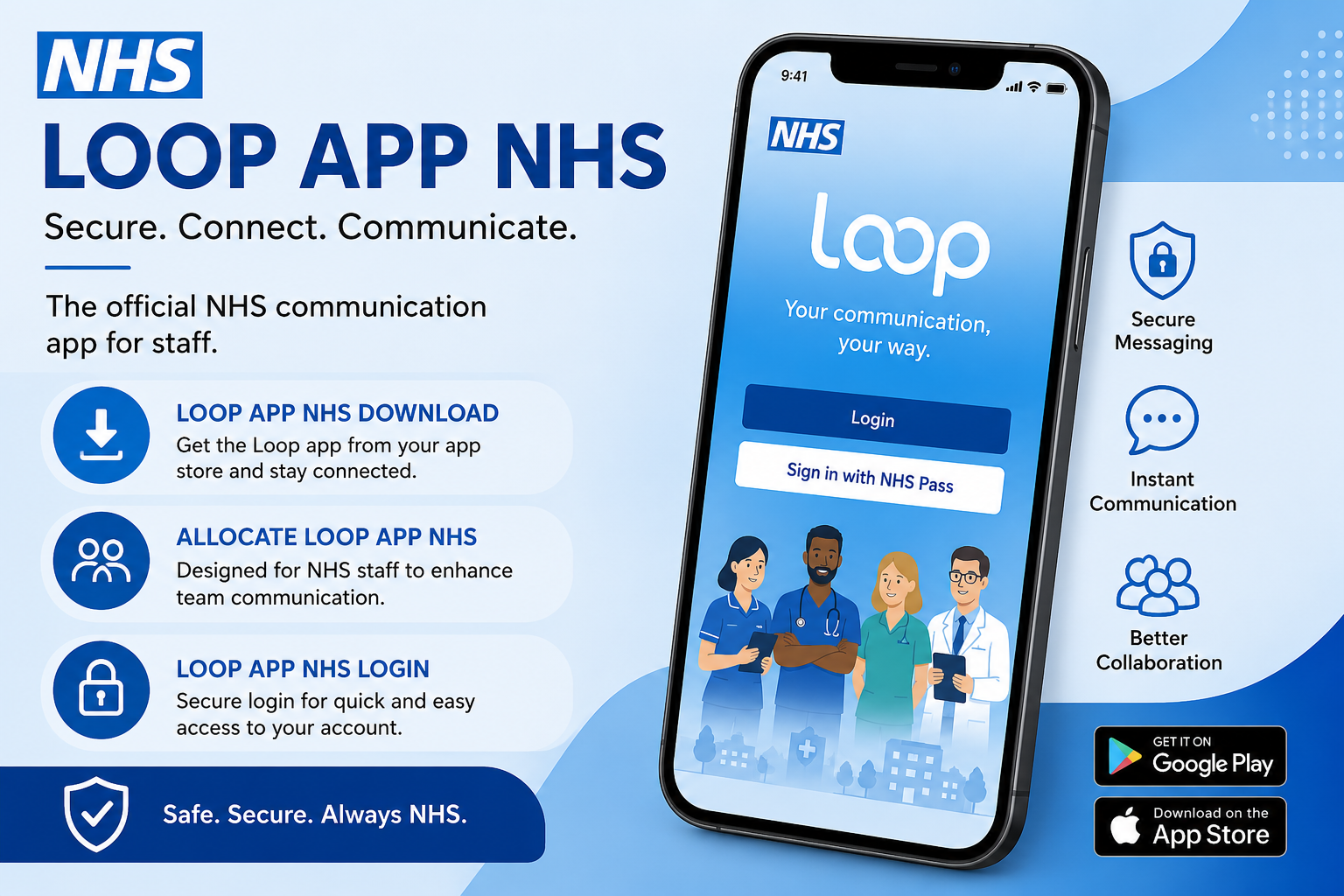
Many people who work in the NHS want an easier way to see their work shifts, talk to their team, and stay up to date with important news from their hospital or trust. In 2026, the Loop App NHS makes this simple and friendly for everyone. This guide will walk you through everything in a clear and kind way, just like a helpful friend explaining it step by step. You will feel confident and ready to start using it soon.
Introduction
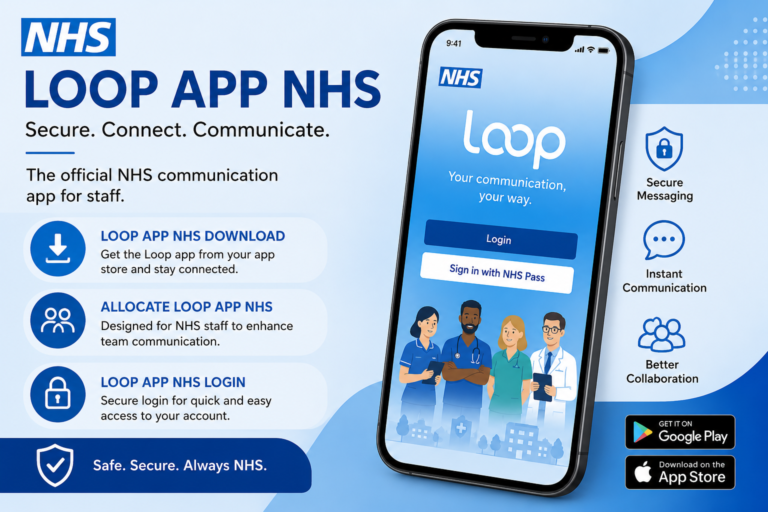
The Loop App NHS, also known as Allocate Loop, is a helpful tool made for healthcare staff. It brings together shift planning, team messages, and updates from your workplace in one safe place. Many NHS trusts now use it because it works better than older systems like Employee Online.
Staff can check their roster quickly, ask for time off, swap shifts, and chat with colleagues without sharing personal phone numbers. This saves time and makes daily work feel smoother. Doctors, nurses, care workers, and support teams all find it useful. Your trust may have started using it officially, so it connects directly to your real work information.
Because the app feels warm and easy, many people say it helps them feel more in control of their busy jobs. Let us go through how to get started and use it well.
What Is the Loop App NHS?
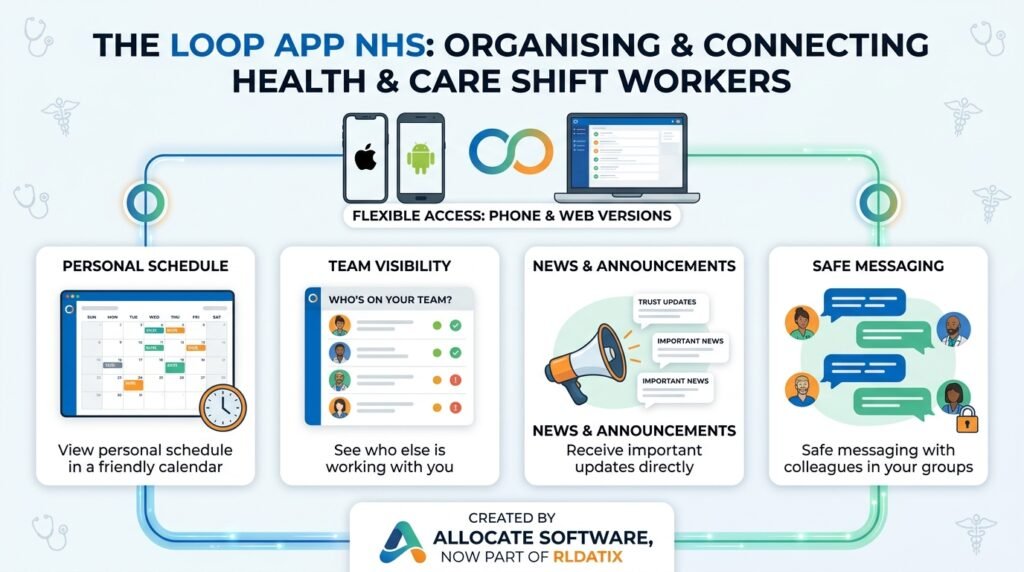
The Loop App NHS is a special mobile app and website created by Allocate Software, now part of RLDatix. It helps shift workers in health and care stay connected and organised.
You can see your personal schedule in a nice calendar view. The app also shows who else is working on your team. It brings news and announcements right to you so you never miss important updates. Another nice part is safe messaging with colleagues in your groups.
The app works on iPhone and Android phones. You can also use a web version on your computer. This makes it flexible for people who like phones or bigger screens. Many trusts are moving to it because it replaces older tools and brings everything together in one friendly spot.
System Requirements and Compatibility
You need a fairly new phone or tablet to run the app smoothly. For Apple devices, it works on iOS 13 or newer. Android users need version 10 or higher. These requirements help the app run fast and show clear pictures.
A good internet connection is important for the first setup and for seeing live updates. After that, some parts may work even with limited connection. You usually need an NHS email or an existing Employee Online or HealthRoster account to link everything properly.
The mobile app feels great for quick checks during breaks. The web version on a computer is good for longer tasks like planning leave. Both versions keep your information in sync so you see the same things everywhere.
Loop App NHS Download
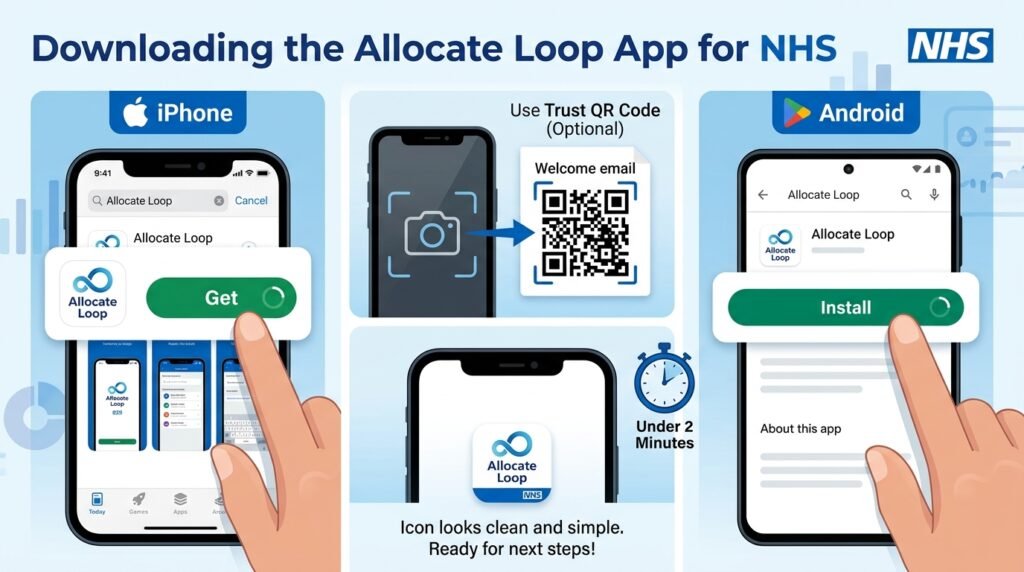
Downloading the Loop App NHS is quick and free. On an iPhone, open the App Store and search for “Allocate Loop”. Tap the Get button and wait for it to finish. On an Android phone, go to Google Play, type the same name, and choose Install.
Some trusts give a QR code in their welcome email. You can point your camera at it to go straight to the right page. If you cannot find the app, make sure you spelled the name correctly and check that your phone allows downloads from official stores.
After the download, the icon looks clean and simple. Open it and you are ready for the next steps. Many people finish this part in less than two minutes.
Creating a New Loop Account (Sign Up)
When you open the app for the first time, you will see options to sign up or log in. Choose Sign Up. Enter your NHS email address because this becomes your main login name. Create a strong password that you can remember.
Next, check your email for a message from the app. Click the link inside to prove the address belongs to you. This safety step only takes a moment.
After verification, the app may ask a few simple questions to start your profile. Answer them carefully. This first setup helps the app know you better and prepares it for connecting to your workplace.
Loop App NHS Login
Logging into Loop App NHS is straightforward. Open the app and choose Log In. You can use your email and password or sometimes your phone number. Type the details carefully and tap the button.
If you forget your password, tap the forgotten password link. The app will send a reset message to your email. Follow the steps inside, and you will be back in quickly.
Some people manage accounts for more than one organisation. The app lets you switch between them safely. Always use the official app or website to keep your information protected.
Allocate Loop NHS: Connecting to Your Organisation
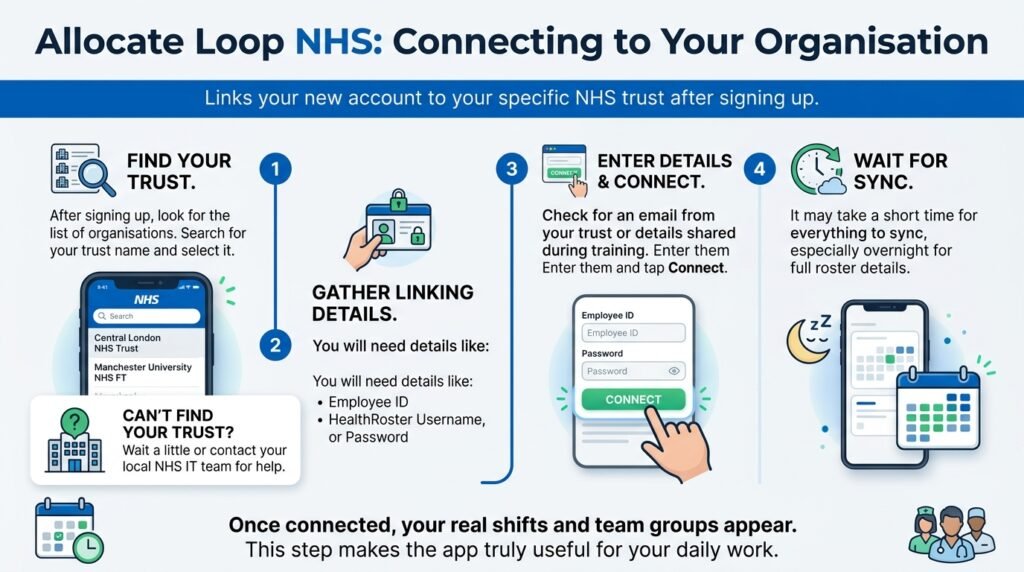
This part links your new account to your specific NHS trust. After signing up, look for the list of organisations. Search for your trust name and select it.
You will need linking details like your Employee ID, HealthRoster username, or password. Your trust usually sends these in an email or shares them during training. Enter them and tap Connect.
It may take a short time for everything to sync, especially overnight for full roster details. If your trust does not show up, wait a little or contact your local NHS IT team for help. Once connected, your real shifts and team groups appear. This step makes the app truly useful for your daily work.
Completing Your Profile and First-Time Setup
After connecting, take a few minutes to make your profile your own. Add a nice photo if you want and write a short note about yourself. Accept the terms and set your notification choices.
You can choose which alerts matter most, like new shifts or important news. The home screen then shows a welcoming dashboard with your calendar, news, and quick links. Exploring here feels exciting because you see your real work information for the first time.
Navigating the Loop App Interface
The app uses simple bottom tabs or a clear menu. The Home or Newsfeed section shows updates from your organisation and colleagues. The Roster tab opens your schedule in calendar form.
You will also find a messaging area for team chats. Your Profile tab holds personal settings and leave balances. Other useful spots might include favourites for fast access. Everything feels clean so you can move around without confusion.
Managing Your Roster and Shifts in Loop
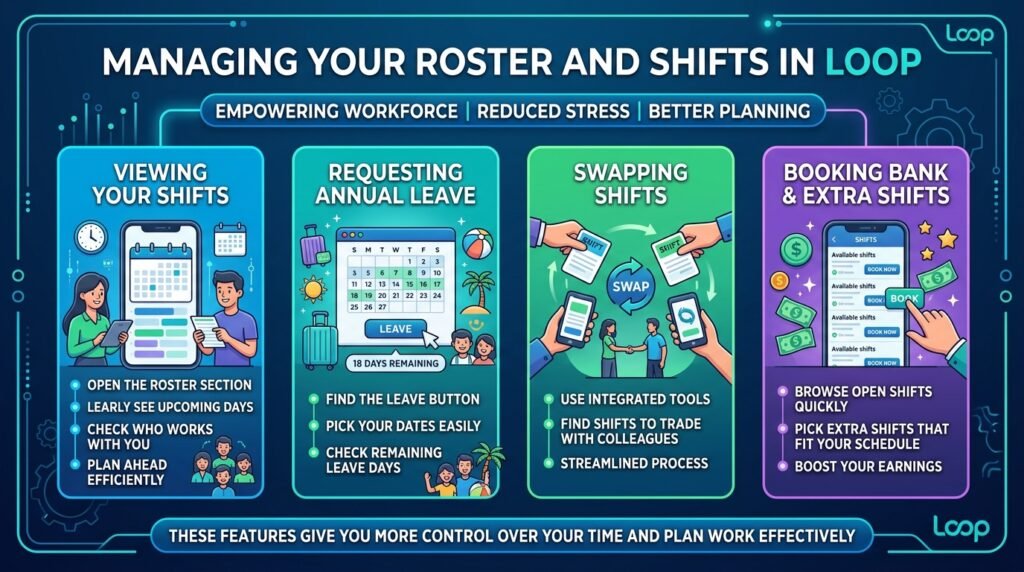
Viewing your shifts is one of the best parts. Open the roster section to see your upcoming days clearly. You can check who works with you and plan ahead.
To request annual leave, find the leave button and pick your dates. The app shows how many days you have left. Swapping shifts with a colleague is also easy through the tools. For bank or extra shifts, you can browse open ones and book them quickly.
These features give you more control over your time. Many staff members say this reduces stress around work planning.
Using Communication and News Features
The newsfeed keeps you in the loop with hospital announcements and team stories. You can like posts and add friendly comments.
Team messaging lets you talk directly or in groups that the app creates automatically based on your shifts. This means you connect with the right people without extra effort. Organisational updates arrive safely so everyone stays informed.
Best practice is to check the app once or twice a day during work. This habit helps you feel part of the bigger team.
[Add your own example or image here]
Troubleshooting Common Issues
Sometimes small problems happen, but most have easy fixes. If login fails, double-check your email and password. Clear the app cache or try the web version.
For connection troubles with your organisation, make sure you use the exact credentials from your trust. Poor internet can cause delays, so try again in a stronger signal area.
If rosters do not appear, wait for the overnight update or log out and back in. App crashes are rare but restarting your phone often helps. Notification problems can be fixed in your phone settings.
Your NHS IT support team or the app help email at loop@allocatesoftware.com are there if you need extra help. Write down error messages to share with them.
Advanced Tips and Best Practices
Customise notifications so you only get the ones you need. This stops too many alerts during rest time. Add important tools to your favourites bar for speed.
Think about security by using a strong password and never sharing login details. The app works best when you check it regularly as part of your routine. Many people combine it with their daily NHS tasks for better flow.
Over time, you will discover small ways it saves minutes that add up to real peace of mind.
Loop App on Web vs Mobile: Which to Use?
The mobile app is perfect for quick looks on the go, like during a break. It feels fast and personal. The web version on a computer gives a bigger view that helps when booking longer leave or reading detailed news.
Both stay in sync, so changes on one appear on the other. Use whichever feels comfortable for the moment. Many staff switch between them during the week.
Frequently Asked Questions (FAQs)
Is the Loop App NHS free to use?
Yes, the app is free for NHS staff whose organisations have joined. You only need your work details to connect.
Can I use it without a smartphone?
Absolutely. The web version works well on any modern computer browser like Chrome or Edge.
How safe is my personal information?
The app follows strong NHS safety rules. Colleagues see only what you choose to share, and your phone number stays private.
What if my trust is not yet on the app?
Ask your manager or IT team about plans. More trusts add it all the time.
Does it work offline?
Some saved information like your profile shows without internet, but fresh rosters and messages need a connection.
How do I update the app?
Your phone usually updates it automatically. Check the app store once a month to be sure you have the newest version.
Can family members see my work shifts?
No, this is only for your work account and stays separate from personal life.
Who do I contact for trust-specific help?
Reach out to your local NHS digital or rostering team first. They know exactly how your organisation uses the app.
Conclusion and Next Steps
You now know how to download, log in, connect, and enjoy the Loop App NHS. It brings your roster, team chats, and workplace news together in one kind and simple place. Many healthcare workers say it makes their days feel lighter and more organised.
Take it one step at a time. Download the app today, set up your account, and explore slowly. You will soon wonder how you managed without it. Talk to colleagues who already use it for extra tips.
Check your trust website or staff portal for any special guides. Stay curious and patient with yourself as you learn. Your work life can feel better when you stay in the loop.
Disclaimer: This article is a general helpful guide based on public information and is not an official document from any NHS trust or Allocate Software. Always follow instructions from your own organisation and contact your local IT support for personalised help. Policies and features can change, so check official sources for the latest details.
Explore More:
Parenting App Guide: Best Co Parenting App & Free Court-Approved Options
Filimin App: Complete Guide to Features, Download, Setup & Streaming Experience
About the Author